Smartphones are an essential part of daily life. We use them for communication, payments, work, navigation, entertainment, and storing personal memories. When something goes wrong, even a minor issue can feel extremely stressful. Many people rush to a repair shop for every small problem, not realizing that most phone issues are simple and can be fixed at home with basic knowledge.
This easy, practical guide is designed for beginners, DIY enthusiasts, and anyone curious about how mobile repair works. You don’t need advanced tools or special technical training to fix many common problems. All you need is patience, careful handling, and the right steps.
As a well-known technician once said, “A phone isn’t complicated—it becomes complicated only when you panic.”
With the right approach, even tough-looking issues become simple.
Let’s explore everything you need to know to repair your phone yourself safely and confidently.
Understanding the Type of Problem (Most Important Step)
Every repair begins with one essential question:
What kind of problem is your phone facing?
Before attempting any fix, identify the category of fault.
Almost all mobile issues fall into three main types:
- Settings Faults
- Hardware Faults
- Software Faults
Once you know the category, choosing the right troubleshooting step becomes easy.
1. Settings Faults: Simple Issues That Need Quick Fixes
Settings faults are minor problems caused by incorrect settings, accidental changes, or temporary glitches. They are the easiest to fix.
Examples include:
- Unable to make or receive calls
- Phone switching off while opening gallery
- SMS inbox causing the phone to freeze
- Screen rotation not working
- WiFi or Bluetooth behaving strangely
- Sound profile stuck on silent
In most cases, these issues are small and can be solved with basic steps.
Step 1: Restart Your Phone
This is the simplest and most effective method. Restarting clears temporary bugs and refreshes the system.
Most problems are fixed simply by restarting.
Step 2: Reset the Settings (Not Factory Reset)
If restart doesn’t work, try resetting settings without deleting your data.
Go to:
Settings → System → Reset → Reset All Settings
This restores default system behavior while keeping:
- Photos
- Apps
- Contacts
- Files
This is a safe option for beginners.
Step 3: Factory Reset (Use Only If Needed)
If the issue continues, perform a factory reset.
Settings → System → Reset → Factory Data Reset
This removes:
- Installed apps
- Customizations
- Cached faults
- Unwanted files
Your phone becomes fresh like when it was new.
Important:
You must remember the security code or screen lock; otherwise, the phone will not allow the reset.
If a reset does not fix the issue, it may belong to hardware or software categories.
2. Hardware Faults: Problems Related to Physical Components
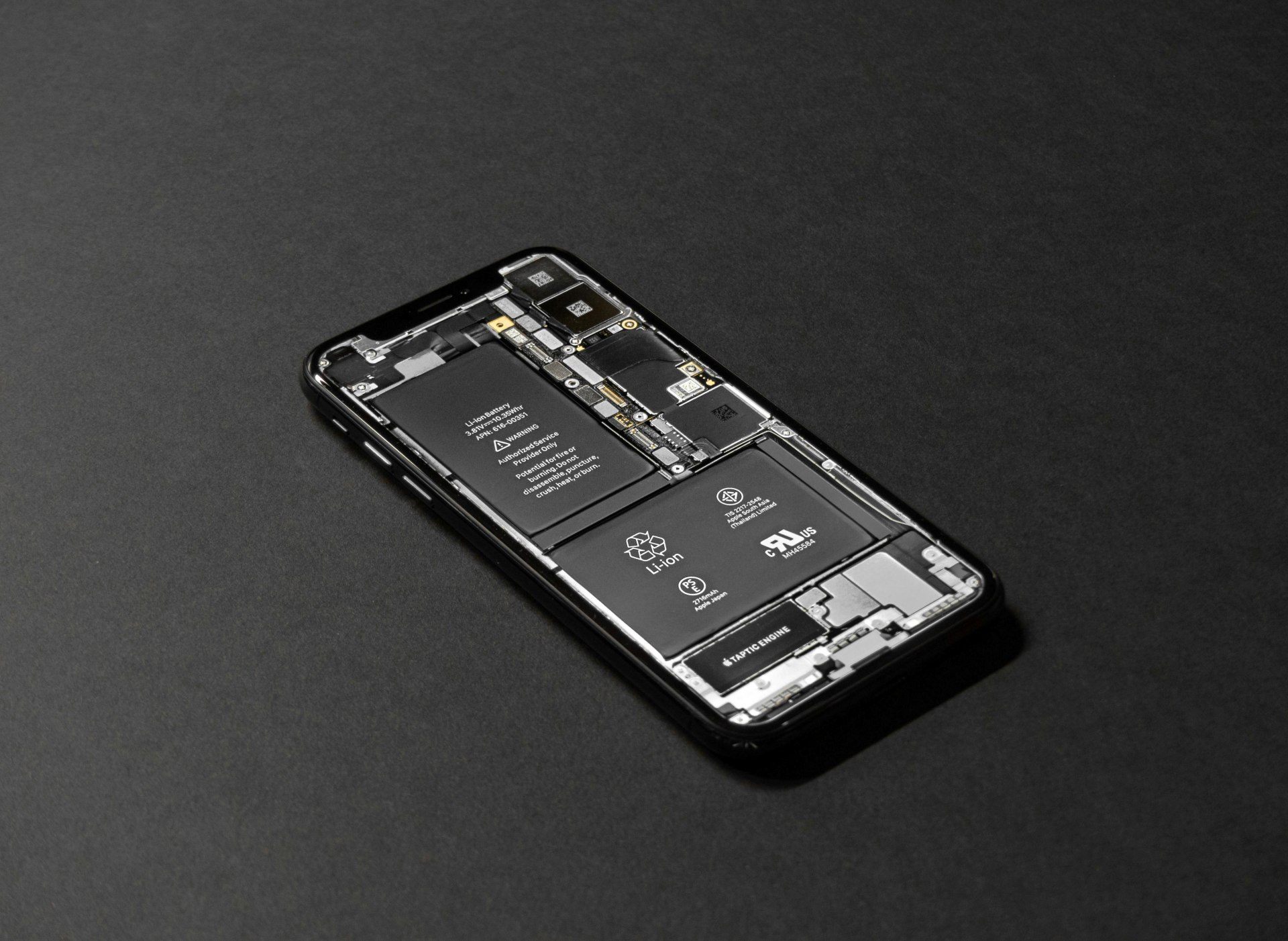
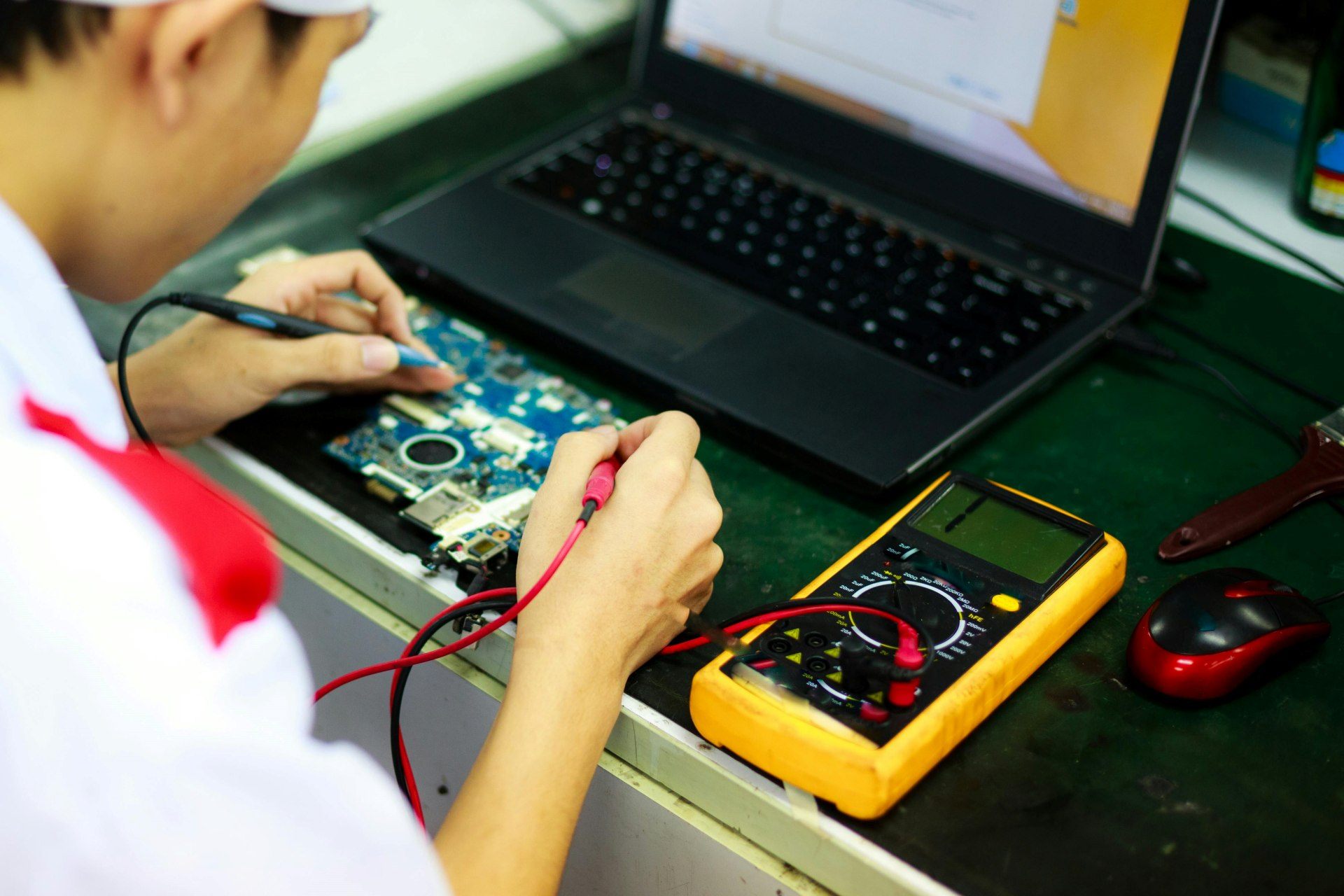
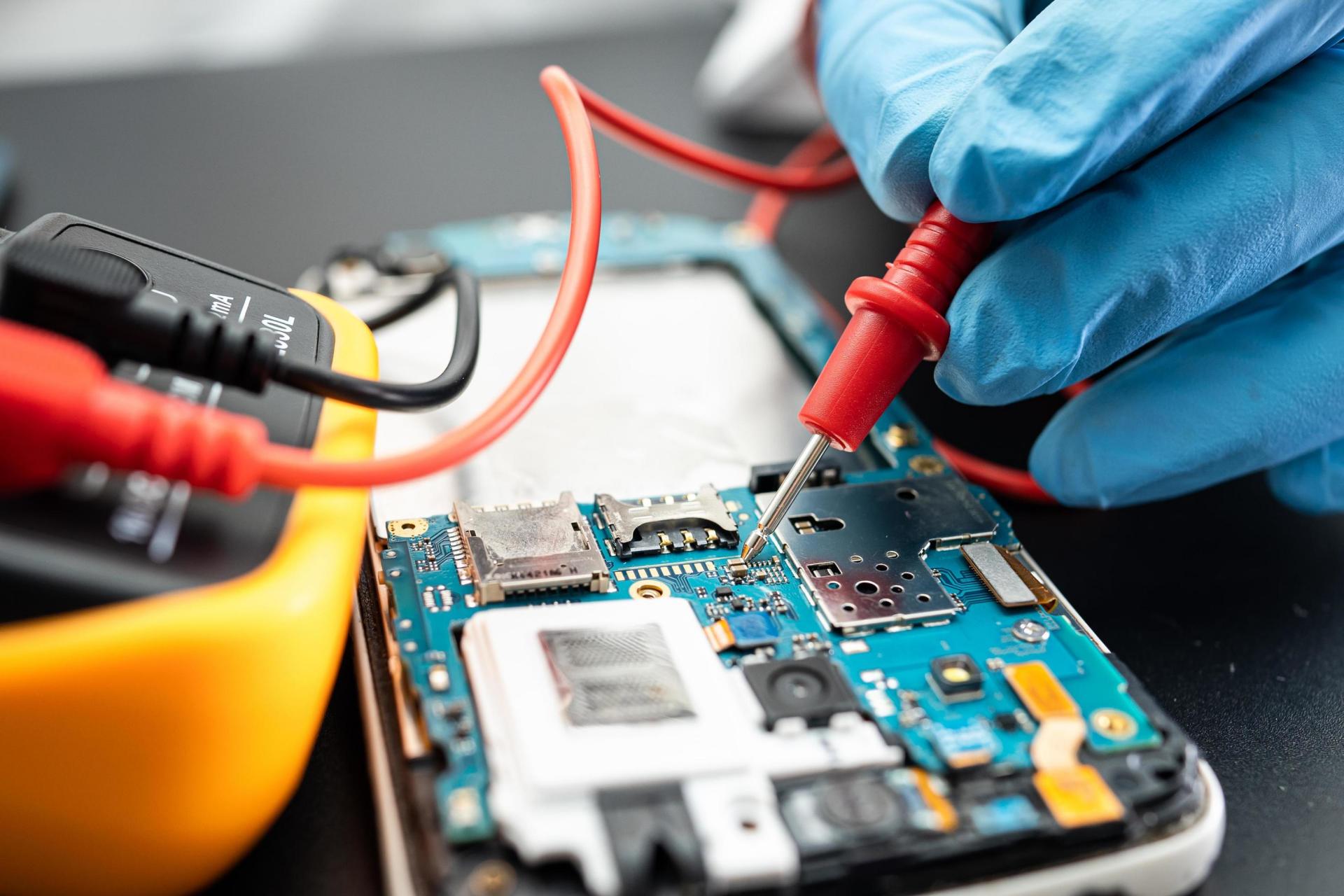
Hardware issues occur due to damage, wear and tear, loose connections, dust, moisture, or failing parts. These problems often require basic tools and careful handling.
Common hardware problems include:
- Phone not charging
- Microphone not working
- Speaker not working
- No display or distorted display
- Touchscreen not responding
- Buttons not working
- Camera not opening
- Overheating
- Battery draining too fast
You may be surprised to know that many hardware faults are caused by dirt, loose connections, or minor corrosion, not by major damage.
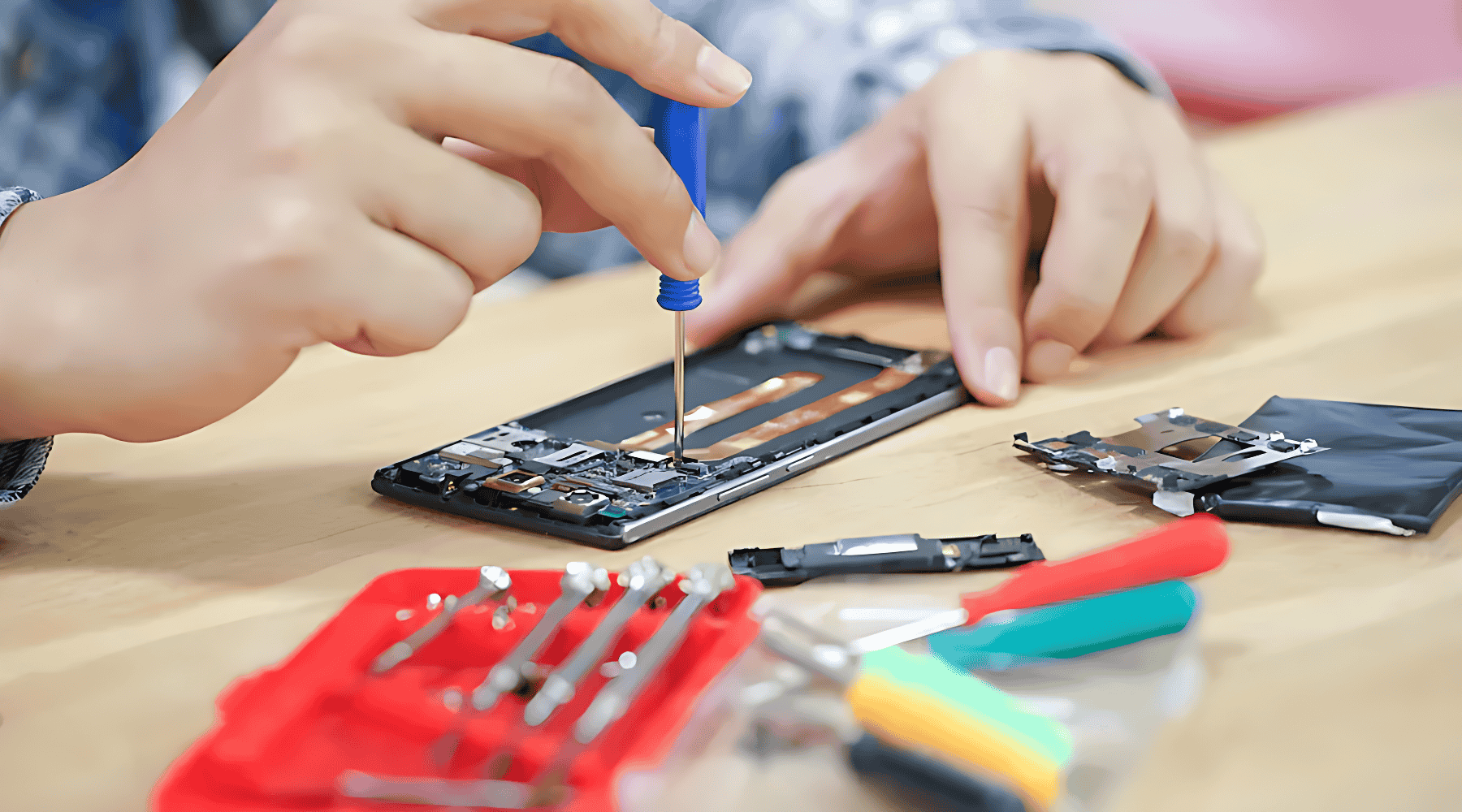
Before Opening Your Phone: Important Safety Rules
- Never open the phone if it’s under warranty — you will lose it.
- Work on a clean surface with good lighting.
- Use a proper phone opening tool kit (avoid sharp household tools).
- Disconnect the battery connector first before touching anything else.
- Do not apply force to connectors or cables.
If at any point you feel unsure, stop immediately.
Step-by-Step Hardware Repair Guide (Beginner Friendly)
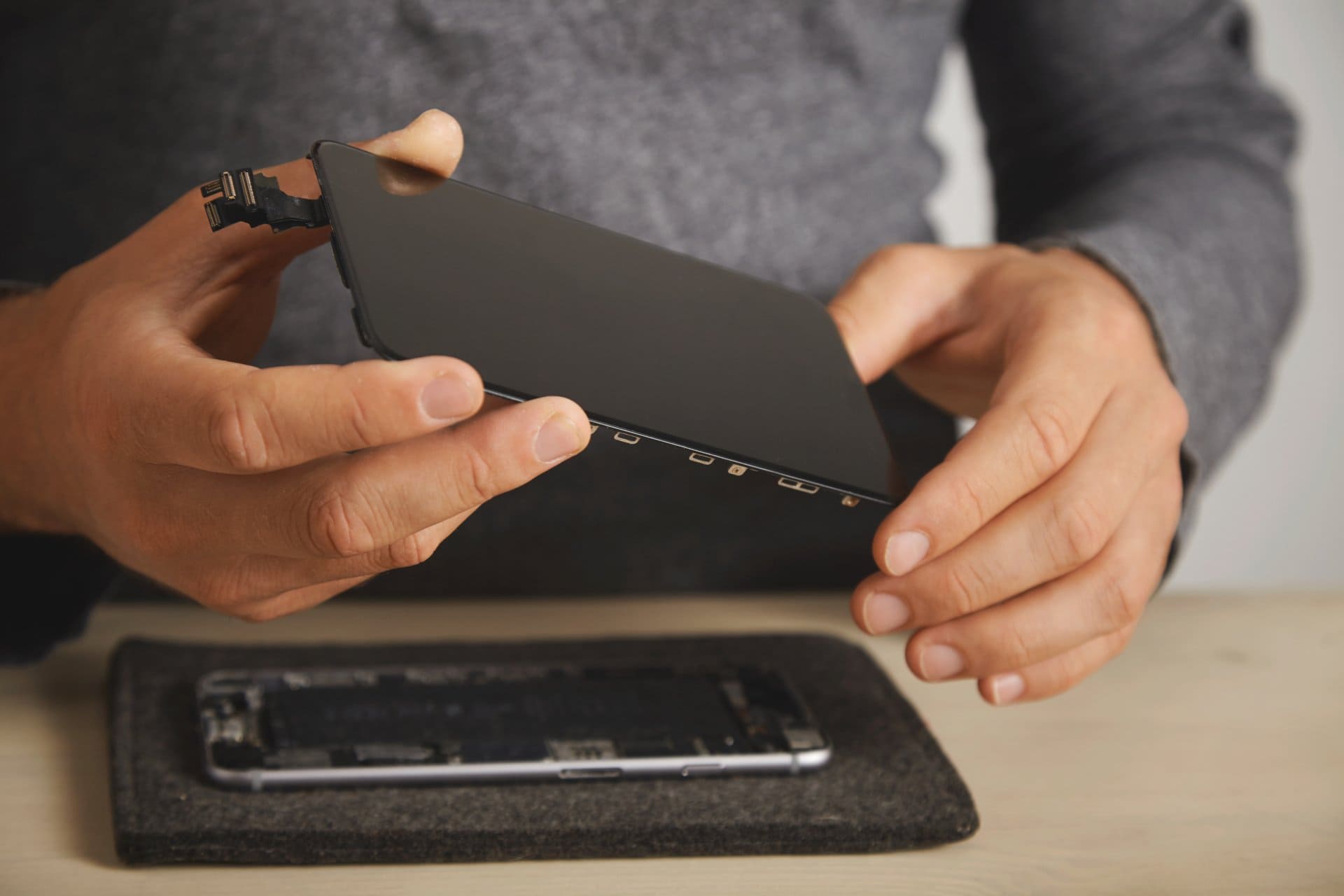
Step 1: Watch a Model-Specific Opening Video
Search:
“How to open <your phone model> back cover”
This ensures you don’t damage internal flex cables or the plastic frame.
YouTube has detailed videos for almost every phone model.
Step 2: Clean Dust and Connections
Most hardware faults happen because:
- Dirt blocks sensors
- Speaker mesh gets clogged
- Charging port filled with dust
- Button flex loses contact
- Connectors move slightly out of place
Use:
- Soft brush
- Isopropyl alcohol (IPA)
- Microfiber cloth
- Compressed air
Do not use water or liquid cleaners.
Common Hardware Fixes You Can Do Yourself
• Charging Issues
Reasons:
- Dust inside charging port
- Loose port
- Damaged cable
Try:
- Clean the charging port gently
- Try a different charger
- Check if the charger supports fast charging
If the port is physically broken, you may need replacement, which beginners should avoid attempting alone.
• Speaker or Microphone Not Working
Often caused by:
- Dust
- Blocked grills
Fix:
- Clean the grills
- Check sound settings
- Test with earphones to confirm
If sound works on earphones but not on speaker, the speaker module may need replacement.
• Touchscreen Not Working
Try:
- Clean the screen
- Restart
- Enter safe mode (to check if an app is causing it)
- Remove any tempered glass that might be affecting touch
If still unresponsive, the touch panel may be damaged.
• Buttons Not Functioning
Side buttons fail due to:
- Dust
- Loose flex
- Physical damage
Cleaning and reconnecting the flex often solves the issue.
• Camera Not Opening
Try:
- Restart
- Clear camera app cache
- Check for loose connector
If the camera shows a black screen, the module may need replacement.
When to Stop DIY Hardware Repair
Some repairs are unsafe for beginners:
- Replacing charging IC
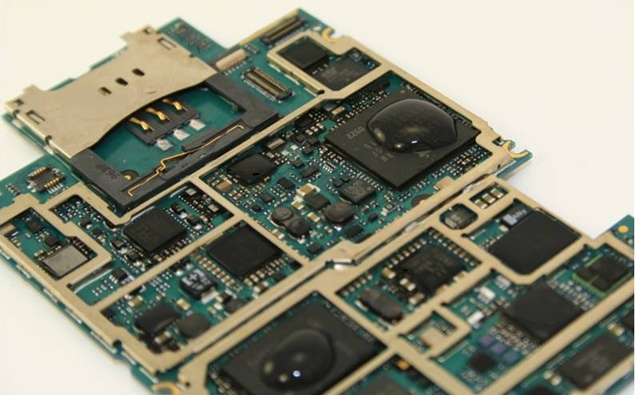
- Fixing motherboard shorts
- Microsoldering
- Replacing display IC
- Heating motherboard components
If cleaning and reconnecting don’t solve the problem, take it to a trained technician.
3. Software Faults: Issues Caused by System or Apps
Software faults are extremely common today because smartphones depend heavily on apps and operating systems. These problems are easier to fix compared to hardware repairs.
Common software issues:
- Phone hanging
- Freezing during calls
- Apps crashing
- Automatic restart
- Stuck at boot logo
- Slow phone performance
- Touch lag
- System glitches
- Overheating due to apps
Step-by-Step Software Repair Guide
Step 1: Restart
Simple but effective.
Step 2: Free Up Storage Space
Low storage is the #1 reason for lag.
Delete:
- Large videos
- Old WhatsApp media
- Unused apps
- Duplicate photos
Aim to keep at least 20–30% free storage.
Step 3: Clear Cache of Heavy Apps
Apps like YouTube, Instagram, Facebook, browser apps store large cache files.
Go to:
Settings → Apps → Select App → Storage → Clear Cache
This improves speed instantly.
Step 4: Update Apps and System Software
Updates include bug fixes and performance improvements.
Step 5: Reset Settings
Restores stable system behavior. If its a feature phone, it will ask for security code. Enter default security code if the code has not been changed. Your problem should get solved. If you are not lucky, you will have to format (factory reset) or flash your handset.
Step 6: Factory Reset
Removes deeper issues like:
- Virus infections
- Corrupted files
- Boot loop errors
- Slow performance
Backup your data first.
Step 7: Flash or Update Firmware
If the phone still has issues:
- Flash the stock firmware
- Install updated OS package
- Restore original system files
This requires tools, firmware files, and basic understanding. If you want to know more about flashing, read what is flashing and how to flash a mobile phone.
Beginners should attempt only with proper guidance, otherwise consult a technician.
Bonus: Common Mistakes to Avoid During DIY Repair
- Not backing up data
- Using excessive heat on the phone
- Applying force while opening
- Using metal tools that cause short circuits
- Mixing up screws
- Touching motherboard circuits with fingers
- Skipping battery disconnection
A careful, patient approach always gives better results.
When Should You Not Repair the Phone Yourself?
DIY repair is great—but not for everything.
Avoid DIY if:
- The screen is cracked badly
- Motherboard has water damage
- Phone has no power at all
- Components require soldering
- Burning smell or smoke is present
- Device repeatedly gets hot even when idle
In such cases, DIY attempts may worsen the damage.
If you wish to build a career in mobile phone repairing, selecting the right institute is the first step. This curated list of Mumbai’s best mobile repairing course institutes can help you start on the right path.
Real-Life Example: A Simple Problem Made Complicated
A user complained that their phone wasn’t charging. They assumed the motherboard was damaged and tried to open the device. In reality, the charging port was filled with lint from the pocket. Once cleaned carefully, the phone worked perfectly.
Lesson:
Not every problem is serious. Sometimes, a simple cleaning saves time and money.
Final Tips for Safe DIY Phone Repair
- Work slowly
- Keep tools organized
- Watch tutorials for your exact model
- Always disconnect the battery first
- Replace parts only when necessary
- Maintain backups regularly
- Don’t panic—phones are simpler than they appear
As one technician says, “You fix a phone with patience before tools.”
Conclusion
Repairing your phone yourself is completely possible. Most issues—whether settings, software, or hardware—can be fixed using simple steps that require no advanced skill. By understanding the type of problem, applying the right method, and following safety precautions, you can save money and avoid unnecessary service center visits.
However, know your limits. When repairs involve motherboard components, soldering, or severe hardware damage, it’s better to leave the job to professionals.
DIY phone repair is empowering, practical, and surprisingly easy once you understand the basics. Start small, follow the right steps, and your confidence and skill will grow naturally.