
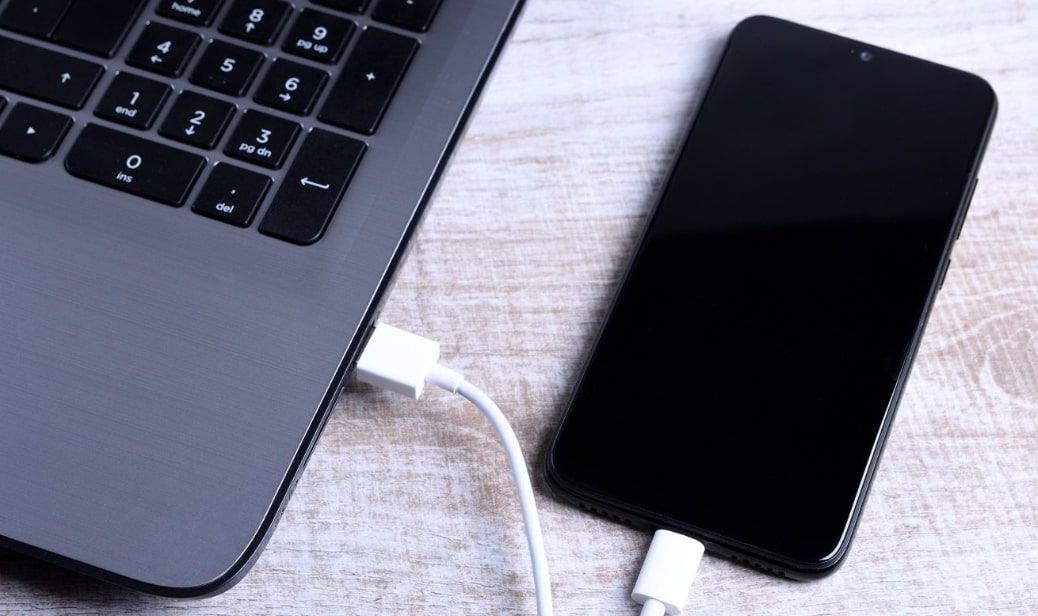
Mobile flashing is a term that many people hear, especially in repair shops or online forums, but it is often misunderstood. Some think it is only for fixing software problems, while others believe it’s a risky trick that can damage a device. The truth lies somewhere in between. Flashing is a powerful method used to reinstall or upgrade the phone’s system software, and when done correctly, it can bring a dead or slow phone back to life.
This article breaks down everything in simple language — what flashing is, why people do it, how it works, how to perform it safely, and when you should avoid it. Along the way, you’ll also learn practical insights from real repair experiences to help you make confident decisions.
Understanding Mobile Flashing in Simple Terms
At its core, flashing means installing new software (firmware or OS) onto a mobile phone. Think of it as reinstalling Windows on a computer or restoring a factory image on a laptop.
When you flash a device, you are replacing or refreshing its internal software. This includes:
- Operating system
- System apps
- Bootloader files
- Vendor-specific customizations
Flashing can be done using official tools from phone brands or third-party tools used by experienced technicians.
In simple words: Flashing is the process of rewriting your phone’s software to fix issues or install a new version.
“Technology becomes clearer the moment we understand how it works.”
Why Do People Flash Their Phones?
Different users have different purposes. Some want to fix problems. Others want to upgrade or customize their phone. Technicians use flashing as a repair method.
Here are the most common reasons:
1. Fixing Software Issues
Flashing can repair problems like:
- Phone stuck on logo
- Bootloop
- Auto restart
- System crashing
- Apps not working properly
- Virus infection
- Software corruption after updates
When normal factory reset fails, flashing is often the only solution.
2. Updating the Operating System
Sometimes devices do not get official updates. Flashing allows installing:
- A newer Android version
- Region-specific firmware
- Stable versions replacing buggy updates
This can improve performance and battery life.
3. Removing Bloatware or Custom UI
Advanced users sometimes flash custom ROMs to remove unwanted apps or heavy skins. This gives:
- A clean interface
- Better speed
- More storage space
However, custom ROMs require root access, which involves risks.
4. Repairing Dead Phones
Many “dead phones” caused by corrupted firmware are revived through flashing. Repair shops commonly use this method with specialized software boxes.
5. Unlocking or Changing Region Settings
Flashing can help when a device needs:
- Carrier unlock (where legally permitted)
- Conversion to a different region version
- Language changes
6. Improving Performance
A fresh firmware installation can:
- Reduce lag
- Fix background process issues
- Improve RAM management
- Stabilize network performance
“A phone with clean software runs longer than a phone with expensive hardware.”
Types of Flashing
Flashing isn’t the same for all phones. Every platform uses its own method.
1. Stock Firmware Flashing
This is the most common and safest method. You install the manufacturer’s official firmware.
Examples:
- Samsung Odin
- Xiaomi Mi Flash Tool
- Motorola RSD Lite
- Vivo & Oppo Flash Tool
This method keeps warranty intact if the firmware is official.
2. Custom ROM Flashing
This installs third-party firmware created by developers.
Benefits:
- Highly customizable
- Cleaner interface
- Better speed
Risks:
- Warranty void
- Bugs or instability
- Security issues
This is for advanced users only.
3. Flashing Through Recovery
Some phones allow flashing using the recovery menu. You can install:
- Update.zip packages
- Custom ROMs
- Patches
- Mods
4. Flashing Using a Professional Box or Dongle
Technicians use tools like:
- UMT
- Miracle Box
- MRT
- Chimera Tool
- Octopus
These tools handle deep-level flashing, IMEI problems (where legally permitted), and FRP resets.
What You Need Before Flashing a Phone
Flashing requires preparation. Skipping these steps can cause data loss or errors.
1. Correct Firmware File
Always choose firmware based on:
- Phone model number
- Region
- Build number
- Chipset
Wrong firmware can brick your phone.
2. Flash Tool (Software)
Examples:
- Odin – Samsung
- SP Flash Tool – MediaTek devices
- QFIL – Qualcomm devices
- Mi Flash Tool – Xiaomi
Choose based on the chipset.
3. USB Cable & Drivers
Install the correct drivers:
- ADB drivers
- Fastboot drivers
- OEM-specific drivers
Without drivers, the system will not detect the device.
4. Charged Battery
Keep battery at least 50% charged to avoid sudden shutdown.
5. Backup of All Important Data
Flashing erases:
- Photos
- WhatsApp chats
- Contacts
- Documents
- Installed apps
Always back up before starting.
6. A Computer (for most methods)
Although some phones can be flashed using recovery, a PC is recommended for safety.
How to Flash a Mobile Phone – Step-by-Step Guide
Below is a safe and general guide. Steps may vary by brand, but the flow is similar for most Android devices.
Step 1: Identify Your Device Model
Go to:
Settings → About phone → Model number
Download firmware only for this exact model.
Step 2: Download Stock Firmware
Visit trusted sources such as:
- Official brand websites
- Manufacturer support portals
- Known firmware libraries
Avoid random websites that may contain malware.
Step 3: Install USB Drivers
Install the correct USB drivers for your device.
Step 4: Download the Flash Tool
Choose the tool based on chipset:
- MediaTek → SP Flash Tool
- Qualcomm → QFIL or Mi Flash
- Samsung → Odin
Step 5: Extract Firmware Files
Unzip the downloaded firmware. Keep it in a clean folder on the desktop.
Step 6: Launch the Flash Tool
Run as administrator for smoother performance.
Step 7: Load Firmware Into the Tool
Most tools have a “Browse” or “Load scatter / AP / XML file” option. Select the appropriate file.
Step 8: Connect the Phone in Flash Mode
Turn off the device, then connect using:
- Volume Up + USB
- Volume Down + USB
- Both buttons + USB
Each brand has its combination.
Step 9: Start Flashing
Click “Start,” “Download,” or “Flash” depending on the tool.
Do not disconnect the phone during the process.
Step 10: Wait for Completion
The tool shows:
- Green checkmark
- Flashing done message
- Passed result
After this, disconnect the phone and reboot.
The first boot may take a few minutes.
Advantages of Flashing a Phone
Flashing offers several benefits when done correctly.
1. Fixes Most Software Problems
It works even when:
- Phone doesn’t boot
- System files are damaged
- Virus corrupts software
2. Improves Speed and Performance
A clean system reduces lag.
3. Updates the OS
Devices stuck on old versions can receive fresh updates.
4. Removes Unwanted Apps
Flashing stock or custom ROMs removes bloatware and resets the system.
5. Gives New Life to Old Devices
Many old phones become usable again after flashing.
Risks and Disadvantages of Flashing
Flashing is powerful but not risk-free.
1. Wrong Firmware Can Brick the Phone
Incorrect files or steps can permanently damage the device.
2. Warranty May Become Void
Custom ROMs and unofficial methods void warranty.
3. Data Loss
Flashing usually wipes everything.
4. Security Risks
Custom ROMs from untrusted developers may include vulnerabilities.
5. IMEI or Network Problems
Improper flashing may cause:
- No network
- Invalid IMEI
- Baseband error
These issues require advanced repair tools.
Signs That Your Phone Needs Flashing
If your phone shows any of these symptoms, flashing may help:
- Bootloop or stuck on logo
- Random freezing
- Too many viruses
- Overheating due to software
- Missing system files
- Storage showing errors
- Failed updates
- Device extremely slow
However, if the problem is hardware-related, flashing will not help.
Who Should Flash a Phone?
Best Suited For:
- Technicians
- Experienced users
- People with dead or corrupted smartphones
- Users who want to update or optimize old devices
Not Recommended For:
- Beginners with no guidance
- Users afraid of losing data
- Phones under warranty
- Devices with hardware issues
If unsure, it’s always safer to visit a professional repair center.
Expert Tips for Safe Flashing
Here are practical, experience-based tips used in repair shops:
✔ Always Match Firmware With Model and Region
Even a small mismatch can brick the phone.
✔ Use Official Tools Whenever Possible
Official flash tools are more stable and safer.
✔ Avoid Flashing for Minor Problems
A simple factory reset can fix many small issues.
✔ Keep the USB Cable Tight
Loose connections cause interruptions.
✔ Never Use Random Custom ROMs
Choose only trusted developers or official sites.
✔ Read the Flash Tool Logs
Error codes help identify problems quickly.
Flashing vs. Factory Reset – What’s the Difference?
Many people confuse these two, but they are very different.
Factory Reset:
- Deletes user data
- Keeps system software unchanged
- Good for minor issues
Flashing:
- Reinstalls the entire system
- Fixes deep-level software corruption
- Can upgrade or downgrade OS
If the problem is too deep, flashing is the stronger solution.
Frequently Asked Questions
1. Does flashing remove all data?
Yes, flashing usually wipes the entire device.
2. Is flashing legal?
Flashing stock firmware is legal. Flashing to bypass security locks or unauthorized modifications may be restricted in some regions.
3. Can flashing fix a dead phone?
If the issue is firmware-related, yes. If it’s hardware, no.
4. Does flashing increase speed?
A fresh system often improves performance.
5. Can flashing damage the phone?
Yes, if done incorrectly or with the wrong firmware.
Conclusion
Mobile flashing is a powerful tool for solving deep software issues, reviving dead devices, updating outdated systems, and improving performance. When done correctly, it can transform a slow or unusable phone into a smooth, fresh device. But flashing also comes with risks, so it must be approached with care, proper knowledge, and accurate files.
If you are unsure about any step, it is safer to get help from an experienced technician. Flashing is not hard, but it requires precision and patience.
“A little knowledge in the right direction can save a device — and a lot of stress.”