You open the camera app on your phone.
The app loads normally.
But the screen stays completely black.
This issue is one of the most frequent camera-related problems reported by smartphone users and repair technicians. It affects Android phones, iPhones, and other mobile devices, regardless of brand or price.
In some cases, the solution is simple.
In others, it requires proper repair-level diagnosis.
“When a camera app opens but shows a black screen, the phone is working — the camera system is not.”
This guide explains why this problem happens, followed by practical repair solutions, from basic software fixes to advanced motherboard-level repairs.
What Does a Camera Black Screen Problem Indicate?
When the camera app opens but shows no preview, it usually means:
- The operating system responds correctly
- The camera application launches
- The camera hardware fails to send image data
This behavior helps technicians narrow the issue to:
- Software conflict
- Camera module failure
- Power or data line issues
Understanding this difference is critical for correct repair.
Main Causes of Camera App Black Screen (Do Not Skip)
Repair is impossible without understanding the cause. Below are the real and commonly observed reasons behind this issue.
1. Temporary Software Glitch
This is the most common cause, especially on Android devices.
Triggers include:
- Heavy multitasking
- RAM overload
- Background app conflicts
The camera app opens, but the system fails to initialize the camera sensor.
2. Corrupted Camera App Cache or Data
Over time, cache files may become unstable.
Results:
- Black preview screen
- Camera freezing on launch
- App crashing after opening
This issue is frequently seen after:
- App updates
- Storage issues
- Incomplete system processes
3. Another App Is Blocking Camera Access
Only one application can use the camera at a time.
Common offenders:
- Video calling apps
- QR scanner apps
- Social media apps with camera access
If an app remains active in the background, the default camera app may open but show nothing.
4. Camera Permission Problems
After system updates or app resets:
- Camera permission may be disabled
- Storage or microphone access may be missing
Without proper permission, the camera cannot activate the hardware, resulting in a black screen.
5. Software Update Bugs
Some updates introduce:
- Camera driver errors
- Hardware communication issues
- Incompatibility with older camera modules
Users usually report:
- Camera worked fine earlier
- Problem started suddenly after update
6. Phone Overheating or Excessive Camera Usage
Extended use of:
- Video recording
- Live streaming
- Gaming
… causes internal temperature rise.
To protect the camera sensor, the system may disable camera output temporarily, leading to a black screen.
“Heat protection can look like a fault, but it’s often a safety response.”
7. Camera Module Hardware Failure
If software fixes fail, hardware becomes the primary suspect.
Common reasons:
- Sensor damage
- Internal short circuit
- Aging camera module
Symptoms include:
- Permanent black screen
- Camera shaking
- App closing instantly
8. Loose Camera Connector or Flex Cable Damage
A slightly loose connector can:
- Interrupt data transfer
- Cut camera power supply
This often happens after:
- Phone drops
- Previous repair attempts
9. Motherboard-Level Faults (Advanced)
In serious cases, the issue lies on the board itself.
Possible faults:
- Camera power line short
- Data line damage
- Camera IC failure
Replacing the camera alone will not solve these problems.
Easy Repair Solutions Users Should Try First
Before opening the device, these non-invasive repair steps should always be attempted.
1. Restart the Phone
A restart clears:
- Temporary software conflicts
- Memory overload
This simple step resolves many camera black screen cases.
2. Close All Background Apps
Ensure:
- No video call app is running
- No camera-based app is active
Then reopen the camera.
3. Check and Allow Camera Permissions
Go to app settings and confirm:
- Camera access is allowed
- Storage and microphone permissions are enabled
Permission issues are often overlooked.
4. Clear Camera App Cache (Android)
Steps:
- Settings → Apps
- Camera → Storage
- Clear cache
This removes corrupted temporary files without data loss.
5. Test Front and Rear Camera Separately
- Switch between cameras
- Observe which one fails
If one works and the other doesn’t, the problem is almost always hardware-related.
Software Repair Solutions (Technician-Approved)
Reset App Preferences (Android)
This restores:
- Default permissions
- Disabled system services
No personal data is deleted.
Safe Mode Diagnosis
Safe Mode disables third-party apps.
If camera works in Safe Mode:
- A third-party app is causing conflict
- Remove recently installed apps
Software Reinstallation or Flashing
Recommended when:
- Issue started after update
- Multiple system apps malfunction
Use:
- Stable firmware
- Correct model-specific ROM
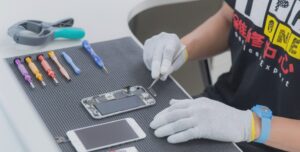
This is a safe repair step before hardware work. You can learn to fix basic cell phone repair problems yourself by trying just a few basic strps.
Hardware Repair Solutions for Technicians
This section is critical for repair technicians.
1. Physical Inspection
Check for:
- Cracked lens
- Liquid residue
- Dust near camera area
Physical damage almost always leads to camera failure.
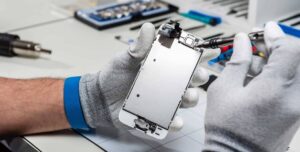
2. Reseat Camera Connector
Steps:
- Open device carefully
- Disconnect and reconnect camera flex
- Clean connector if needed
Loose connectors are a very common repair finding. You should have these basic essential cell phone repair tools to be able to carry out repairs of phones.
3. Test with a Known-Good Camera
Always:
- Test with original-quality parts
- Avoid low-grade replacements
If the new camera works, replacement is confirmed.
4. Check Camera Power Lines
Advanced technicians should:
- Measure voltage supply
- Inspect for short circuits
- Check nearby components
A missing or unstable power line results in a black screen.
5. Motherboard Repair or Servicing
Required when:
- Camera replacement fails
- Power lines are shorted
- Connector pads are damaged
This includes:
- Board cleaning
- Trace repair
- Component replacement
Only experienced technicians should attempt this.
Special Scenarios Worth Knowing
Camera Works in Third-Party Apps Only
Indicates:
- Default camera app corruption
- Software conflict
A system reinstall usually fixes this.
Camera Black Screen After Drop
Internal camera damage is common even if:
- Screen is fine
- Phone powers on normally
Camera Black Screen After Liquid Exposure
Liquid causes:
- Connector corrosion
- Power leakage
Proper cleaning is required. Drying alone is not sufficient.
Common Myths About Camera Repair
❌ Factory reset fixes all camera issues
✅ Hardware faults remain after reset
❌ Camera IC failure is common
✅ Camera modules fail more often
❌ Replacing camera always solves the issue
✅ Board-level faults require deeper repair
Prevention Tips to Avoid Camera Failure
- Avoid overheating
- Use camera in intervals
- Protect phone from moisture
- Avoid low-quality chargers
“Prevention is always cheaper than repair.”
Beginner vs Advanced Technician Guidance
Beginners Should Focus On:
- Software fixes
- Camera replacement
- Connector inspection
Advanced Technicians Should Handle:
- Power line faults
- Short circuits
- Motherboard repair
Knowing repair limits prevents costly mistakes.
Final Summary
When the camera app opens but shows a black screen, the root cause may be:
- Software glitch
- Permission issue
- App conflict
- Camera hardware failure
- Motherboard fault
Repair should always follow logical diagnosis, not guesswork.
“A black screen is not a dead camera — it is a diagnostic signal.”