
If your Samsung Galaxy S5 is slow, frozen, locked, or behaving strangely, a reset is often the most practical solution. Many common software-related problems can be fixed by restoring the device to its original state. However, resetting a smartphone should always be done with proper understanding, because it permanently removes personal data from the device.
This detailed guide explains all working methods to factory reset and hard reset the Samsung Galaxy S5, when to use each method, and what precautions you must take before proceeding. The steps are written in simple language so that even beginners can follow them confidently.
“A reset does not repair hardware, but it often gives new life to a struggling smartphone.”
Understanding Factory Reset and Hard Reset (Simple Definition)
A factory reset means restoring a mobile phone to its original software condition, just like it was when first taken out of the box. All user data stored in the phone’s internal memory is erased.
A hard reset is simply another way of performing a factory reset, usually done using hardware buttons or recovery mode when the phone cannot be accessed normally.
Both terms are often used interchangeably in mobile repairing and smartphone troubleshooting.
Important to know:
- Internal storage data is deleted
- SIM card data is not affected
- Memory card data usually remains safe, but removing it is recommended
About Samsung Galaxy S5 (Quick Overview)
The Samsung Galaxy S5 is a popular Android smartphone known for features like:
- Water and dust resistance
- Fingerprint sensor
- Private mode
- Heart rate monitor
Even though it is an older device, it is still widely used and frequently comes to repair shops for software resets, pattern lock issues, and performance problems.
When Should You Reset Samsung Galaxy S5?
A reset is not needed for every problem. It should be used only when basic troubleshooting fails.
Common situations where reset is helpful:
- Phone is very slow or lagging
- Device freezes or hangs frequently
- Apps keep crashing
- Forgotten screen lock, PIN, or pattern
- Phone stuck on logo or boot loop
- Virus or malware infection
- Before selling or giving away the phone
- Major software errors after updates
If your phone only has a minor glitch, restarting it may be enough.
Soft Reset vs Hard Reset (Important Difference)
Before moving to a full reset, always try a soft reset.
Soft Reset (Simple Reboot)
A soft reset means restarting the device without deleting data.
How to do it:
- Press and hold the Power button
- Select Restart or Power Off
- Turn the phone back on
If the phone is frozen, keep the Power button pressed until it shuts down.
If the problem is solved after reboot, a hard reset is not required.
Things to Check Before Performing a Factory Reset
Before resetting your Galaxy S5, take these precautions seriously.
Essential pre-reset checklist:
- Backup important data (contacts, photos, videos, documents)
- Charge the battery to at least 40–50%
- Remove memory card if possible
- Sign out of important accounts if accessible
Also read: How to Backup and Restore an Android Phone (internal link opportunity)
“Data loss hurts more than a slow phone. Backup is not optional.”
What Data Gets Erased After Reset?
A factory reset will remove:
- Google account linked to the device
- Installed applications and app data
- Contacts stored in phone memory
- Messages, call logs
- Photos, videos, audio files
- System and app settings
It does not repair hardware faults like broken screens, battery issues, or charging port damage.
Method 1: Factory Reset Samsung Galaxy S5 Using Settings (Recommended)
This is the easiest and safest method if you can access the phone menu.
Steps:
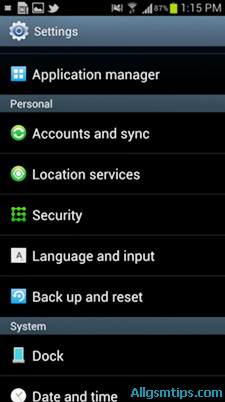
- Open the Menu
- Go to Settings
- Scroll to Backup and Reset
- Select Factory Data Reset
- Tap Reset Device
- Confirm by selecting Erase Everything
The phone will restart automatically and begin the reset process.
Best used when:
- Phone is working normally
- Screen lock is known
- No boot issues
Method 2: Hard Reset Samsung Galaxy S5 Using Hardware Buttons
This method is useful when:
- Phone is locked
- Touchscreen is not responding
- Device is stuck on logo
- Settings menu is inaccessible
Button Combination Method (Recovery Mode)
Steps:
- Power off the Samsung Galaxy S5
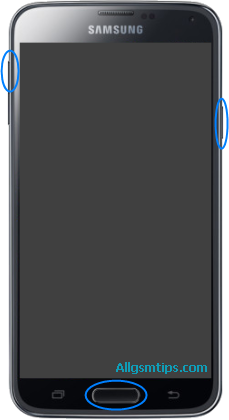
- Press and hold:
- Volume Up
- Home button
- Power button
- Release all buttons when the Android recovery screen appears
- Use Volume Down to navigate to Wipe data / factory reset
- Press Power button to select
- Choose Yes – delete all user data
- After completion, select Reboot system now
The device will restart with factory settings.
This is the most commonly used method by mobile repair technicians.
Method 3: Factory Reset Using Dial Code (Advanced & Risky)
Samsung devices support a reset code that forces formatting.
Reset Code:
*2767*3855#
How it works:
- Open the phone dialer
- Enter the code exactly
- The phone immediately starts resetting
Important warnings:
- No confirmation screen
- No chance to cancel
- Instant data deletion
Use this method only if you fully understand the consequences.

Which Reset Method Should You Choose?
| Situation | Recommended Method |
|---|---|
| Phone working normally | Settings reset |
| Forgot pattern or PIN | Button method |
| Phone stuck or frozen | Recovery mode |
| Technician-level use | Dial code |
Common Problems After Reset (And Solutions)
Phone Asking for Google Account
This is normal due to security protection.
Solution:
- Sign in with the previously linked Google account
- If forgotten, proper account recovery is required
Phone Still Slow After Reset
Possible reasons:
- Old hardware limitations
- Storage wear
- App compatibility issues
Reset improves software, not aging hardware.
Reset Did Not Fix the Problem
If the issue continues, it may be:
- Firmware corruption
- Hardware fault
- Power IC or memory issue
In such cases, software flashing or professional repair may be required.
Also read: What Is Mobile Phone Flashing and When Is It Needed? (internal link opportunity)
Expert Tips for Safe Reset (From Repair Experience)
- Always try reboot first
- Avoid repeated resets unnecessarily
- Do not interrupt the reset process
- Keep phone connected to battery if possible
- Use original button combinations only
Reset Myths You Should Ignore
- ❌ Reset improves battery health (false)
- ❌ Reset fixes broken hardware (false)
- ❌ Reset recovers deleted data (false)
A reset only fixes software-level problems.
Frequently Asked Questions (Quick Answers)
Does hard reset remove viruses?
Yes, most software-based malware is removed.
Will reset unlock a stolen phone?
No. Security protections remain active.
Can data be recovered after reset?
Usually no, unless backups exist.
Final Thoughts
Resetting a Samsung Galaxy S5 is a powerful troubleshooting step when used correctly. Whether you choose a factory reset from settings or a hard reset using buttons, the key is preparation and understanding.
Use resets wisely, back up your data, and remember that not every phone problem needs formatting.
A reset is a solution—not a shortcut.