Few things are more frustrating than a weak mobile phone network signal. Calls drop suddenly. Messages fail to send. Mobile data crawls when you need it most. Whether you are using an Android phone, an iPhone, or another smartphone, poor network reception can interrupt work, travel, and daily life.
A weak signal is not always the fault of your device. Many factors affect how well your phone connects to the network, including location, surroundings, network congestion, and even how you hold your phone. The good news is that in many cases, you can improve signal strength with simple and practical steps.
“A strong connection is not about having the newest phone, but about understanding how your device interacts with the network around you.”
This guide explains what causes weak mobile network signals and shows clear, proven ways to improve reception. The advice is practical, experience-based, and written to help real users—not just to sound technical.
What Does Weak Mobile Network Signal Mean?
A weak mobile network signal means your phone is struggling to communicate with the nearest cell tower. This affects:
- Voice call quality
- Call stability
- Internet speed
- App performance
- Location services
Signal strength is usually shown as bars on your phone screen. Fewer bars mean weaker reception, but bars alone do not tell the full story. A phone may show bars yet still struggle with data due to network congestion or interference.
Common Reasons for Weak Mobile Phone Signal
Understanding the cause helps you choose the right solution.
1. Distance From Cell Towers
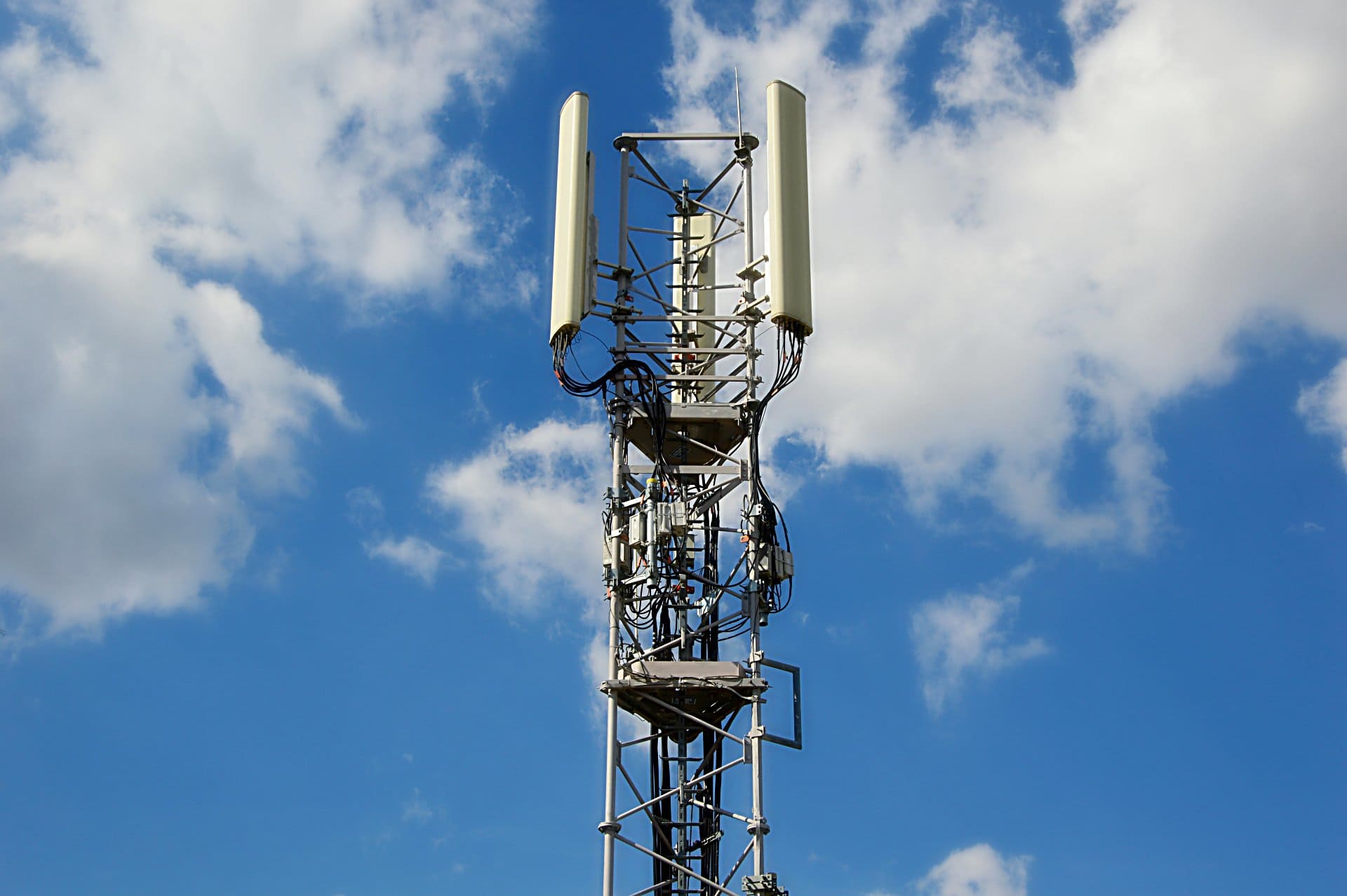
Mobile phones rely on nearby towers. The farther you are, the weaker the signal becomes. This is common in rural areas, highways, or remote locations.
2. Physical Obstructions
Concrete walls, metal structures, basements, elevators, and underground parking areas block signals. Even thick building materials can reduce reception indoors.
3. Network Congestion
When too many users connect to the same tower, speeds drop and calls may fail. This often happens during peak hours or large public events.
4. Weather and Environment
Heavy rain, storms, or dense foliage can slightly affect signal quality, especially for data services.
5. Phone Hardware Limitations
Older devices or damaged antennas inside the phone can struggle to maintain stable reception.
6. Software or Network Settings
Incorrect network mode, outdated software, or SIM-related issues can reduce signal performance.
How to Improve Weak Mobile Phone Network Signal
1. Move to a Better Location
This sounds simple, but it works more often than people expect.
- Step closer to a window
- Go outside briefly
- Move to a higher floor
- Avoid enclosed spaces
Even a few steps can make a noticeable difference because the phone may connect to a clearer signal path.
2. Turn Airplane Mode On and Off
This forces your smartphone to reconnect to the nearest available tower.
How it helps:
It refreshes the network connection and often resolves temporary signal drops.
When to use it:
- After traveling
- When calls suddenly start dropping
- When data stops working
Wait about 10 seconds before turning airplane mode off.
3. Restart Your Mobile Phone
Restarting clears temporary software glitches and resets network connections.
This simple step can:
- Improve call stability
- Restore mobile data
- Fix sudden signal loss
If your phone has not been restarted for days or weeks, this is a good place to start.
4. Check Network Mode Settings
Modern smartphones support multiple network types such as 2G, 3G, 4G LTE, and 5G.
What to do:
- Ensure your phone is set to automatic network selection
- Avoid locking the device to a single network mode unless necessary
In areas with weak 5G coverage, switching temporarily to 4G LTE can provide more stable performance.
5. Update Phone Software
Manufacturers regularly release updates that improve network compatibility and performance.
Software updates can:
- Improve signal handling
- Fix modem-related bugs
- Enhance carrier compatibility
Always install official updates from your device manufacturer.
6. Check the SIM Card
A faulty or old SIM card can cause poor reception.
Try this:
- Remove the SIM card
- Clean it gently
- Reinsert it properly
If the SIM is very old or damaged, request a replacement from your mobile service provider.
7. Use Wi-Fi Calling Where Available
Wi-Fi calling allows your phone to make calls using an internet connection instead of cellular towers.
Best for:
- Homes with weak indoor signals
- Office buildings
- Basement locations
Most Android phones and iPhones support Wi-Fi calling if enabled by the carrier.
8. Reduce Signal Interference Indoors
Certain household items can interfere with mobile signals:
- Routers placed too close to phones
- Metal furniture
- Large appliances
Try changing where you sit or where you keep your device when using it indoors.
9. Keep Your Phone Case in Check
Some thick or metal phone cases can block antennas.
If you notice signal issues:
- Remove the case temporarily
- Check if signal improves
If it does, consider switching to a lighter, signal-friendly case.
10. Reset Network Settings (When Necessary)
This clears saved network data and reconnects your phone from scratch.
What it resets:
- Mobile network settings
- Wi-Fi connections
- Bluetooth connections
Use this only if other steps do not help, as you will need to reconnect to networks again.
Advanced Ways to Improve Mobile Signal
Mobile Signal Boosters
Signal boosters amplify existing cellular signals and rebroadcast them indoors.
Pros:
- Effective in remote or weak-signal areas
- Improves call quality and data speed
Cons:
- Requires installation
- Needs at least some existing signal to work
They are useful for homes or offices with consistent signal issues.
External Antennas (Limited Use)
Some devices and routers support external antennas, but most smartphones do not. This option is more relevant for mobile hotspots or data routers.
Myths About Improving Mobile Network Signal
It is important to avoid false solutions that waste time or money.
Myth: Apps can magically boost signal
Reality: Apps cannot increase signal strength beyond hardware limits.
Myth: Wrapping the phone in foil improves reception
Reality: This usually makes reception worse.
Myth: Signal bars always reflect real performance
Reality: Data speed and call quality depend on many factors beyond bars.
How Network Type Affects Signal Quality
Voice Calls
Voice calls need stable connectivity more than speed. A moderate signal can still provide clear calls.
Mobile Data
Data services are more sensitive to congestion and signal quality. Weak signals often result in slow browsing and buffering.
VoLTE and Wi-Fi Calling
These technologies improve call clarity when supported by your carrier and device.
Android vs iPhone: Any Difference in Signal Strength?
Both Android phones and iPhones follow similar network principles.
Differences usually come from:
- Antenna design
- Modem quality
- Software optimization
A newer device may perform slightly better, but location and network quality still matter more than brand.
When the Problem Is the Network Provider
Sometimes the issue is not your phone at all.
Signs include:
- Everyone nearby facing similar issues
- Signal drops at specific times daily
- Poor coverage maps for your area
In such cases:
- Contact customer support
- Report the coverage issue
- Ask about tower upgrades or alternative network options
“Technology works best when the environment supports it. Even the smartest phone needs a reliable network behind it.”
Practical Real-Life Scenarios
At Home
Use Wi-Fi calling, sit near windows, and avoid basements for important calls.
While Traveling
Toggle airplane mode after crossing regions. Network handovers can cause temporary drops.
At Work
Identify signal-friendly spots. Some buildings have dead zones due to construction materials.
When to Consider a Phone Upgrade
Upgrading makes sense if:
- Your device is very old
- It lacks support for newer network bands
- The antenna has physical damage
However, upgrading alone will not fix poor coverage in your area.
Safety and Battery Considerations
A phone struggling for signal consumes more battery.
To reduce drain:
- Use Wi-Fi when possible
- Avoid constant signal searching in no-coverage zones
- Enable low-power modes when signal is weak
Quick Checklist for Improving Weak Signal
- Restart your phone
- Toggle airplane mode
- Move to a better location
- Check SIM and network settings
- Update software
- Use Wi-Fi calling
- Avoid signal-blocking cases
Final Thoughts
Weak mobile phone network signal is a common issue, but it is not always permanent or unsolvable. By understanding how signals work and applying practical steps, you can improve call quality, data speed, and overall smartphone performance in many situations.
Focus first on simple fixes before considering advanced solutions. Most signal problems are caused by environment, settings, or temporary network conditions—not faulty devices.
If issues persist despite trying everything, reaching out to your service provider is the most reliable next step.
A stable connection makes your phone truly useful. With the right approach, better signal strength is often closer than you think.