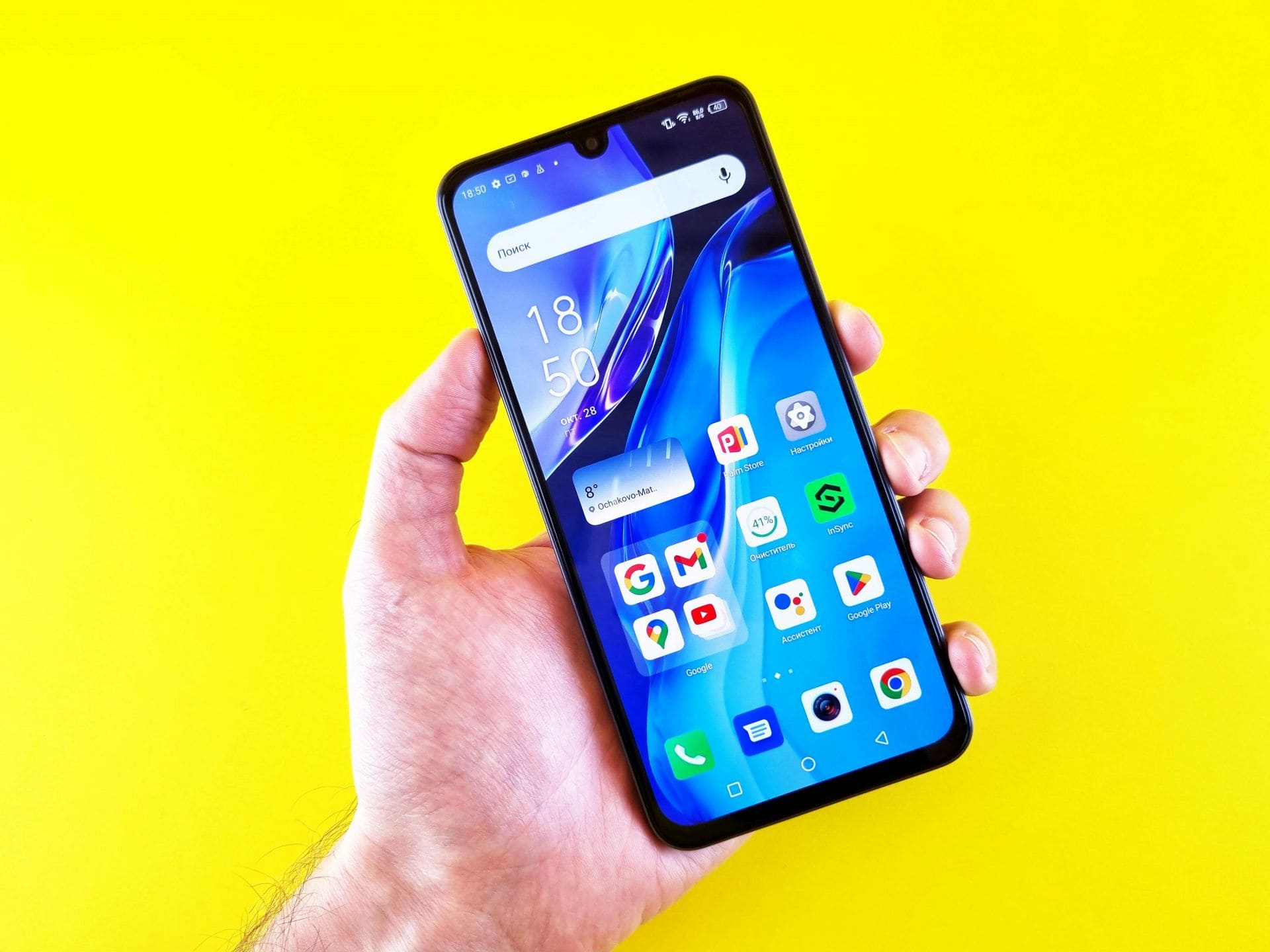
Modern smartphones have become powerful digital tools. A single device now handles communication, banking, navigation, entertainment, and work. With so many functions running together, it is normal for a mobile phone to sometimes slow down, freeze, or behave strangely.
“Most phone problems are not serious. Knowing the right fix at the right time makes all the difference.”
Many common phone issues can be solved without visiting a service center. Two simple solutions often help—soft reset and hard reset. These methods look similar on the surface but work very differently.
This guide explains the real difference between soft reset and hard reset, when to use each one, what happens to your data, and what to do if problems continue even after resetting.
Why Phones Start Misbehaving
Smartphones run complex software. Over time, temporary files, background apps, system bugs, or failed updates can cause issues. Some phones start turning off by itself, others keep restarting, and some become slow even with a full battery.
Common symptoms include:
- Phone freezing or becoming unresponsive
- Apps opening slowly or crashing
- Screen not responding to touch
- Phone switching off again and again
- Device shutting down with full battery
- Phone stuck on logo during startup
- Random restarting without warning
Most of these problems are software-related. That is where reset options help.
What Is a Soft Reset? (Simple Restart Explained)
A soft reset means restarting your smartphone normally or force-restarting it if the screen does not respond.
It is the first and safest step to try when a phone behaves oddly.
What a Soft Reset Does
- Refreshes the system memory
- Clears temporary background processes
- Stops stuck apps and services
- Reloads the operating system cleanly
What a Soft Reset Does NOT Do
- Does not delete data
- Does not remove apps
- Does not erase settings
- Does not affect photos or contacts
In simple words, a soft reset is like giving your phone a short break.
When Should You Use a Soft Reset?
A soft restart works best for minor problems, such as:
- Phone is slow
- Apps not opening properly
- Screen not responding
- Temporary network issues
- Phone heating slightly
- Phone restarting occasionally
- Device behaving unusually after long usage
Many technicians try a soft reset before doing anything else because it fixes a large number of issues instantly.
How to Perform a Soft Reset (Android & iPhone)
For Android Phones
- Press and hold the Power button
- Tap Restart, or
- Hold Power for 10–20 seconds until the phone restarts
For iPhones
- For Face ID models: Press Volume Up + Power, then slide to power off
- For Home button models: Hold Power, then slide to power off
- Turn the phone back on after a few seconds
This method is safe and can be repeated anytime.
What Is a Hard Reset? (Factory Reset Explained)
A hard reset, also known as a factory reset, erases all user data from the phone and restores it to its original condition.
It is a last-resort solution when other troubleshooting steps fail.
“A hard reset does not repair hardware. It only gives the software a fresh start.”
What a Hard Reset Deletes
A factory reset removes:
- Google or Apple account data
- Installed apps and app data
- Contacts and call logs
- Messages and chat history
- Photos, videos, and downloads
- System settings and preferences
What It Does Not Remove
- Operating system itself
- Manufacturer firmware
- Data on external memory card (in most cases)
When Should You Use a Hard Reset?
A hard reset is useful when:
- Phone is switching off on its own
- Phone is restarting repeatedly
- Device stuck on boot logo
- Severe lag even after restart
- Malware or suspicious apps detected
- Phone settings badly corrupted
- Preparing the phone for resale
It is also recommended if the phone keeps turning off automatically with full battery and software checks show no error.
Important Checks Before Hard Reset
Before performing a factory reset, always ensure:
- Backup is taken (cloud or computer)
- Battery level is above 50%
- You remember your Google or Apple ID
- SIM and memory card are removed (optional)
Failing to back up data can cause permanent data loss.
How to Perform a Hard Reset
From Phone Settings
- Open Settings
- Go to System / General Management
- Tap Reset
- Select Factory data reset
- Confirm and wait
Using Hardware Buttons
Used when the phone does not turn on properly.
Steps vary by model, but usually involve:
- Power + Volume buttons
- Selecting reset option using volume keys
Soft Reset vs Hard Reset: Quick Comparison
| Feature | Soft Reset | Hard Reset |
|---|---|---|
| Deletes data | ❌ No | ✅ Yes |
| Fixes minor bugs | ✅ Yes | ✅ Yes |
| Fixes major software issues | ❌ Sometimes | ✅ Often |
| Safe to repeat | ✅ Yes | ❌ Limited |
| Time required | Few seconds | Several minutes |
What If Reset Does Not Fix the Problem?
Sometimes, even after a hard reset, the phone may still:
- Keep shutting down
- Restart automatically
- Not boot properly
In such cases, the issue could be:
- Battery health problem
- Power IC fault
- Software corruption requiring firmware reinstall
- Hardware damage
At this stage, professional diagnosis is recommended.
Common Myths About Phone Resets
Myth: Reset repairs hardware
Truth: Resets only fix software issues
Myth: Reset improves battery health
Truth: Battery performance depends on physical condition
Myth: Hard reset removes system updates
Truth: Updates remain installed
Expert Tips for Safe Phone Usage
- Restart your phone once every few days
- Avoid installing unknown apps
- Keep system updates enabled
- Do not ignore repeated shutdown issues
- Backup data regularly
“Most phone failuressues grow worse when ignored. Early action saves time and money.”
Soft Reset or Hard Reset: Which One Should You Try First?
Always follow this order:
- Soft reset
- Check updates and apps
- Hard reset (only if needed)
Jumping directly to factory reset is unnecessary in most cases.
Final Thoughts
Understanding the difference between a soft reset and a hard reset helps you make the right decision at the right time. A simple restart can solve many issues, while a factory reset should be used carefully and only when needed.
If your smartphone is turning off by itself, restarting again and again, or shutting down with full battery, resetting may help—but only if the issue is software-related.
When in doubt, start small. Let your phone tell you what it needs.