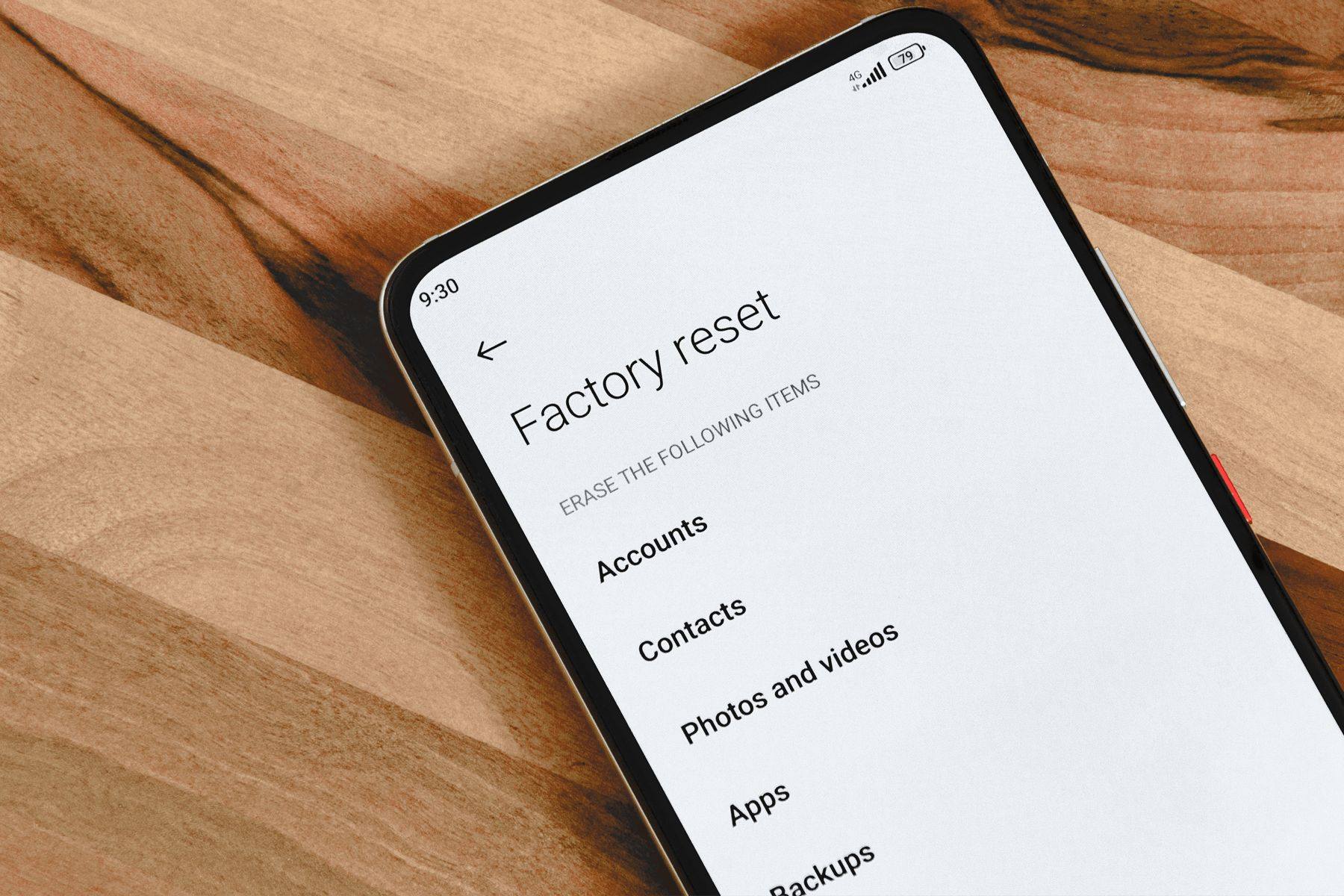
Mobile phones are powerful tools, but they are also vulnerable to malware, spyware, adware, and malicious apps. When a phone becomes infected, it may slow down, freeze, restart repeatedly, or behave strangely. In such cases, formatting the phone—also known as performing a factory reset—is often the most effective way to remove deep infections and restore normal performance.
A factory reset wipes user data stored in the internal memory and restores the device to its original settings. Unlike computers, phones do not require reinstalling the operating system after formatting. The built-in OS (Android or iOS) remains intact and automatically reloads during the reset.
Think of it this way:
“When software becomes too cluttered to fix, a clean slate is the fastest solution.”
This guide explains virus symptoms, the difference between formatting and flashing, step-by-step reset procedures, backup methods, and how to protect your phone afterwards. Everything has been updated to match modern phone features and security practices.
1. What Formatting a Phone Actually Means
Formatting a phone means erasing all data stored in internal storage, including:
- Contacts (unless synced with cloud)
- Photos and videos
- Installed apps
- Messages
- Downloads
- Saved accounts
- Settings
- Cache and temporary files
Important:
Formatting does not reinstall the operating system.
The device automatically reloads its OS after reset.
This is different from flashing, where a technician installs fresh firmware manually—usually after severe corruption or failed updates.
What formatting does NOT erase:
- Data stored on a microSD card
- Cloud-synced items (Google/Apple account data)
- SIM card contacts (if stored there)
To fully remove infections, you may also need to clean or format the SD card, as many viruses hide inside external storage.
2. Difference Between Formatting and Flashing
Many DIY users confuse these two terms, but they are completely different.
| Process | Formatting (Factory Reset) | Flashing (Firmware Installation) |
|---|---|---|
| Data Wipe | Yes | Yes |
| OS Reinstall | No | Yes |
| Technical Skill | Low | High |
| Removes Malware | Yes, in most cases | Yes, fully |
| When Used | Virus infection, slow phone | Severe system corruption |
| Who Does It | Anyone | Trained technician |
Formatting solves most virus-related problems. Flashing is used mainly for phones that won’t boot, freeze permanently, or have damaged software.
3. Signs Your Phone May Have a Virus
Modern phone viruses behave differently than old-style malware. They often hide inside apps, notifications, or browser redirects.
Here are the most common symptoms:
1. Phone becomes slow
Apps take longer to open, scrolling lags, or the screen freezes.
2. Phone restarts by itself
Unexpected shutdowns or frequent reboot loops.
3. Apps crash or misbehave
Certain apps close automatically, refuse to open, or behave strangely.
4. Pop-ups appear frequently
Random ads or warnings even when apps are closed.
5. High data consumption
Malware running in the background may use your internet without permission.
6. Overheating
Unwanted background processes overload the processor.
7. Unknown apps show up
Apps you didn’t install appear in your app drawer.
8. Battery drains faster than normal
Malicious software often runs continuously.
9. Security warnings
Your phone may alert you about harmful behavior from an app.
If you face several of these issues together, formatting is often the best solution.
4. Precautions Before Formatting a Phone
Formatting wipes everything. So before resetting, follow these steps:
✔ Backup your data
Use:
- Google Drive (Android)
- iCloud (iPhone)
- External backup apps
- Copy to computer manually
✔ Save WhatsApp chats
WhatsApp > Settings > Chats > Chat Backup
✔ Sync contacts
Make sure your contacts are saved to Google/Apple.
✔ Ensure phone battery is above 50%
A reset requires sufficient power.
✔ Sign out of accounts only if required
For example, before selling a device, sign out of accounts and disable device lock features.
✔ Remove SD card
Prevents accidental wipe and protects external data.
Once your backup is ready, you can safely format your device.
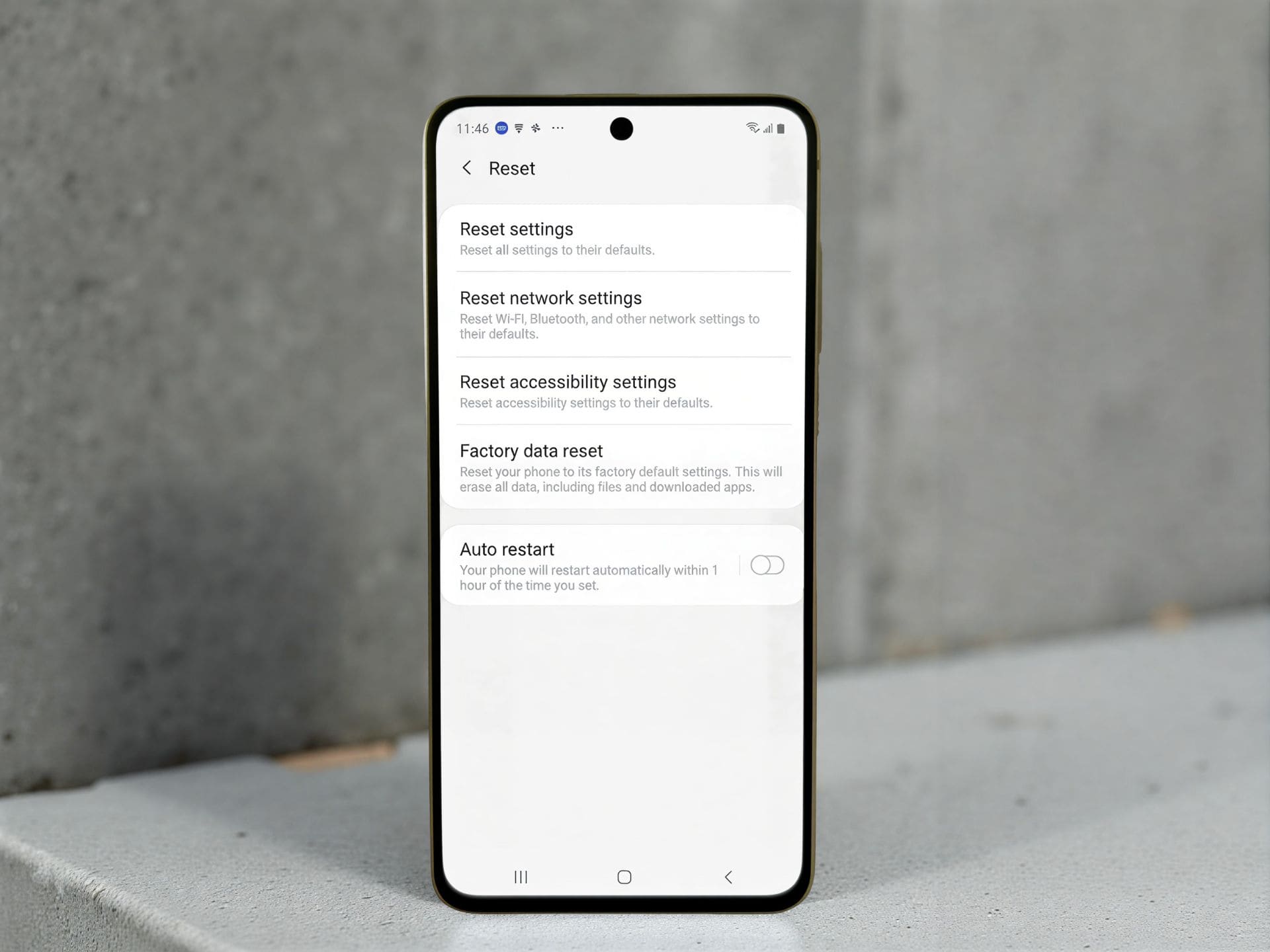
5. How to Format an Android Phone (Factory Reset)
Most modern Android devices support two reset methods:
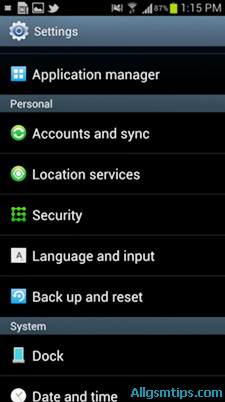
Method 1: Reset Through Settings (Recommended)
- Open Settings
- Select System
- Tap Reset options
- Choose Erase all data (factory reset)
- Review what will be erased
- Enter PIN or password
- Tap Erase everything
Your phone will restart and begin wiping internal storage.
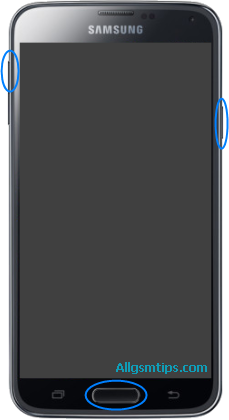
Method 2: Reset Using Recovery Mode
Used when:
- The phone freezes
- You cannot access settings
- A virus blocks system controls
Steps:
- Power off the phone
- Press Power + Volume Up together (varies by model)
- Enter Recovery Mode
- Select Wipe data/Format Data/factory reset
- Confirm the action
This bypasses the OS and performs a clean reset. You can also format Android smartphones through various special software like UMT dongle and Unlock Tool.

6. How to Format an iPhone (Erase All Content and Settings)
iPhones rarely get viruses, but malicious profiles, unsafe apps, or system bugs can still affect performance.
Method 1: Reset Through Settings (Best Option)
- Go to Settings
- Select General
- Tap Transfer or Reset iPhone
- Choose Erase All Content and Settings
- Enter passcode and Apple ID (if asked)
- Confirm reset
The iPhone will erase all internal data and reboot.
Method 2: Reset Using a Computer
Useful when:
- The iPhone won’t turn on properly
- You forgot the passcode
- The device is in recovery mode
Steps:
- Connect your iPhone to a Mac or Windows PC
- Open Finder (Mac) or iTunes (Windows)
- Select your device
- Click Restore iPhone
- Confirm
This restores the latest firmware while wiping all data.
7. Formatting Internal Storage vs Formatting Memory Card
A virus can infect both internal memory and SD cards.
After formatting the phone, ensure your SD card is clean:
Option A: Format SD card
Insert → Settings → Storage → Format SD card
Option B: Scan SD card with antivirus
Good for removing malware without deleting files.
Option C: Backup → Format → Restore
Fastest and safest method.
Important:
Although memory cards have almost become extict, if you are using one, never insert an infected SD card into a newly formatted phone without cleaning it first.
8. Can Formatting Remove All Viruses?
In most cases, yes. A factory reset removes:
- Malicious apps
- Hidden scripts
- Corrupted system data
- Browser hijackers
- Most adware and trojans
However, a hard reset cannot remove:
- Firmware-level malware (rare)
- Root-installed spyware
- Infections embedded in the SD card
- Malware from custom ROMs
For severe infections, flashing firmware may be required.
9. What To Do After Resetting Your Phone
Once your device restarts, you’ll need to set it up again. But this time, you can take steps to prevent reinfection.
✔ Install apps only from official stores
Google Play Store or Apple App Store.
✔ Avoid installing unknown APKs
Third-party apps often contain hidden malware.
✔ Update your device
Security patches fix vulnerabilities.
✔ Use a mobile security app (optional but helpful)
Choose a reputable antivirus brand.
✔ Enable Google Play Protect
It regularly scans installed apps.
✔ Check app permissions
Remove unnecessary access to:
- Location
- Contacts
- Microphone
- Files
✔ Avoid clicking unknown links
Malicious links in SMS, email, or WhatsApp are common infection sources.
✔ Be careful with public Wi-Fi
Use a VPN for extra protection.
By following these habits, you significantly reduce the risk of future infections.
10. Common Mistakes People Make While Formatting Phones
Avoid these to ensure a smooth, safe reset:
❌ Not backing up data
Always save important files before wiping.
❌ Forgetting to clean the SD card
The virus may return immediately.
❌ Resetting without checking battery
A shutdown during reset can corrupt the system.
❌ Installing the same infected apps again
Only restore apps from trusted sources.
❌ Confusing reset with flashing
Flashing is not required unless the OS is heavily corrupted.
Formatting should be done carefully but confidently—it’s simpler than many users think.
11. Real-Life Example: When Formatting Actually Works
A common scenario in repair shops:
A customer brings a phone that:
- Opens apps slowly
- Displays random ads
- Installs apps by itself
- Restarts frequently
Technicians check the device and find several malicious apps running in the background. After backing up important data, they perform a factory reset and clean the SD card. In nearly all such cases, the phone works perfectly again.
Such examples show how a reset can restore a device without complicated repairs.
Conclusion
Formatting your phone is a powerful way to remove viruses, clean corrupted files, and restore smooth performance. It wipes internal data but keeps the operating system intact, making it one of the simplest and most reliable troubleshooting methods.
Whether your phone is slowing down, freezing, showing pop-ups, or behaving strangely, a factory reset may be all it needs.
As technicians often say:
“When the system becomes cluttered, the cleanest repair is a fresh start.”
Use this guide to format your device safely, protect it afterwards, and keep it running smoothly for the long term.ill have to format the memory card or scan it with an antivirus.
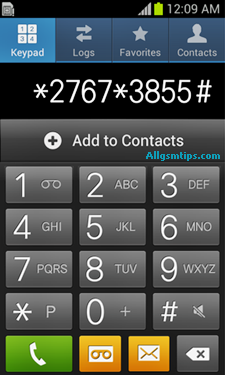
You can also format mobile phones with the help of secret codes. Read secret codes of cell phones to know how to format phones with secret codes.