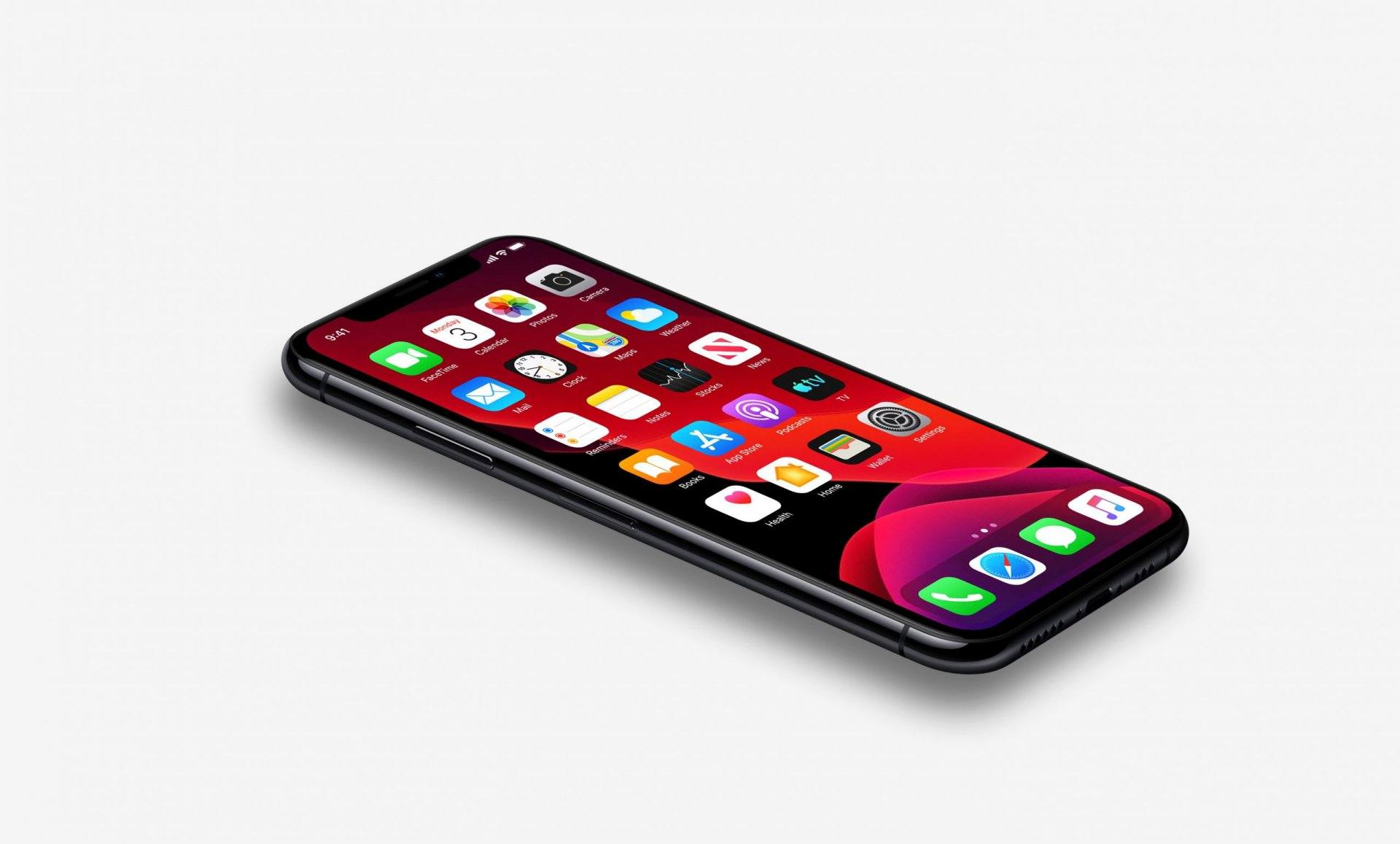
iPhones are known for their stability, smooth performance, and secure operating system. Still, like any electronic device, they can freeze, lag, become unresponsive, or behave differently from normal. Apps may crash, the touch screen may stop responding, or the device may not react to any button.
When that happens, many users panic. But in most cases, a simple reset is all you need.
There are two main types of resets on an iPhone:
- Soft Reset
- Hard Reset (also called factory reset or full restore)
Both serve different purposes and produce very different results. Understanding the difference helps you solve issues safely without losing important data.
A useful reminder is:
“Not every problem needs a factory reset—sometimes all your iPhone needs is a simple restart.”
This guide explains each method in detail, how they work, how to perform them on modern iPhones, and when to use which reset.
1. What Is a Soft Reset on an iPhone?
A soft reset means restarting your iPhone. It does not delete data and is completely safe.
Think of it as:
- Refreshing the system
- Clearing temporary glitches
- Fixing minor app issues
A soft reset is the first thing you should try when:
- The screen freezes
- Apps stop responding
- The phone becomes slow
- Buttons don’t react
- The device feels stuck
It is safe, quick, and effective for light system disturbances.
2. How to Perform a Soft Reset (Modern iPhones)
The method depends on whether the iPhone has a Home button or not.
A. For iPhones With Face ID (no Home button)
- Press and hold Volume Up + Side Button
- A slider appears: “Slide to power off”
- Slide it to turn the phone off
- Wait a few seconds
- Hold the Side Button to turn it back on
B. For iPhones With a Home Button
- Press and hold the Power/Side Button
- Slide to power off
- Restart by long-pressing the same button
When To Use a Soft Reset
Use this when:
- The phone is slow
- The screen freezes occasionally
- An app crashes
- Performance feels unstable
- You just updated software and it feels glitchy
A soft reset never deletes photos, apps, settings, or personal data.
3. What Is a Hard Reset on an iPhone?
A hard reset is a deeper process.
It force-restarts the device or restores it to factory settings—depending on the method used.
There are two meanings of “hard reset,” and many users confuse them:
Meaning 1: Force Restart (No Data Loss)
A stronger form of soft reset used when:
- The screen is completely unresponsive
- Buttons don’t work
- The iPhone is stuck on the Apple logo
- The touch screen is frozen
Force restart is safe and does not erase data.
Meaning 2: Factory Reset (Data Is Erased)
This is the true hard reset.
It restores the phone to original settings:
- All data is wiped
- All apps are removed
- Settings return to default
- The device becomes like new
This process is used when:
- Software problems are severe
- The phone has frequent freezes
- You are selling or giving away the device
- You need a fresh installation
- Malware or corrupted software is present
Important:
A factory reset deletes everything unless you have a backup.
4. How to Force Restart (Hard Reset Without Data Loss)
This method varies by model.
A. iPhones With Face ID (most recent models)
- Press Volume Up quickly
- Press Volume Down quickly
- Hold the Side Button until the Apple logo appears
B. iPhones With Home Button
- Hold Home Button + Power Button
- Keep holding until the Apple logo appears
This is useful for:
- Black screen issues
- Frozen display
- Apps that cause full system lock
- Boot loop attempts
- Touchscreen not responding
A force restart simply forces the phone to shut down and reboot.
It does not erase anything.
5. How to Perform a Factory Reset (Hard Reset With Data Erase)
A factory reset wipes all data. Make sure you back up your phone first.
Here are updated methods used today.
Method 1: Reset From iPhone Settings
The easiest method:
- Open Settings
- Go to General
- Tap Transfer or Reset iPhone
- Select Erase All Content and Settings
- Enter passcode
- Confirm
The iPhone will erase everything and restart fresh.
Method 2: Reset Using a Computer (Mac or Windows)
This method is used when:
- The phone doesn’t boot
- You forget your passcode
- The screen is damaged
Steps:
- Connect your iPhone to a Mac or Windows PC
- Open Finder (Mac) or iTunes (Windows)
- Select your iPhone
- Click Restore
- Download firmware and restore the device
This installs a fresh version of iOS, removing all data.
Method 3: Reset Through Recovery Mode
Used for serious issues like:
- Boot loops
- Software corruption
- Failed updates
Steps (Face ID models):
- Press Volume Up
- Press Volume Down
- Hold Side Button
- Connect to computer when recovery screen appears
- Choose Restore
Recovery restores iOS completely.
6. Key Differences Between Soft Reset and Hard Reset
Below is a clear, simple comparison for quick understanding:
| Feature | Soft Reset | Hard Reset (Force Restart) | Hard Reset (Factory Reset) |
|---|---|---|---|
| Data Loss | No | No | Yes, everything is erased |
| Use Case | Minor issues | Frozen or unresponsive phone | Severe problems / selling device |
| Time Required | Seconds | Seconds | 5–20 minutes |
| Tools Needed | None | None | Device or computer |
| Risk Level | Safe | Safe | High (data wipe) |
| Restores Factory Settings? | No | No | Yes |
| Fixes System Corruption? | Partially | Some issues | Most issues |
This table satisfies the primary user intent: understanding the difference quickly.
7. When Should You Use Soft Reset vs Hard Reset?
Use Soft Reset When:
- The phone is slow
- Apps freeze
- You updated software recently
- Touch stops responding sometimes
- The device feels glitchy
Use Force Restart (Non-erasing Hard Reset) When:
- The display is completely frozen
- The phone doesn’t turn off
- Buttons don’t respond
- iPhone is stuck on Apple logo
- The screen is black but phone is on
Use Factory Reset (Full Hard Reset) When:
- The iPhone freezes frequently
- Software is corrupted
- You want to start fresh
- You’re selling or giving away the device
- Malware or configuration errors exist
- System settings are completely messed up
A useful reminder here:
“Reset only what you need to reset—never erase more than the problem demands.”
8. What Happens After a Factory Reset?
Once the reset completes, your iPhone will:
- Restart as a new device
- Show the “Hello” setup screen
- No longer contain your data
- Require Apple ID login during setup
You must restore your backup to get your photos, contacts, and apps back.
Options for backup recovery:
- iCloud backup
- Computer backup
- Transfer from another device
Without a backup, data cannot be recovered after a full reset.
9. Important Precautions Before Hard Resetting an iPhone
A hard reset is powerful, so follow these precautions:
✔ Backup your data
Use iCloud or a computer.
✔ Sign out of Apple ID
Prevents activation issues when selling.
✔ Charge battery above 50%
Avoid unexpected shutdown.
✔ Disable “Find My iPhone”
Only when selling or giving away the device.
✔ Know your Apple ID password
You will need it after reset.
✔ Avoid factory reset just for minor issues
A soft reset usually solves them.
10. Common Mistakes Users Make (and How to Avoid Them)
❌ Mistake 1: Confusing force restart with factory reset
Many think holding buttons wipes data.
It does not—only factory reset erases data.
❌ Mistake 2: Resetting the phone without backup
This leads to permanent data loss.
❌ Mistake 3: Doing a factory reset for minor problems
Most issues are solved with a soft reset.
❌ Mistake 4: Using iTunes on old instructions
Modern iPhones rely mainly on Finder or updated Windows tools.
❌ Mistake 5: Hard resetting to remove iCloud lock
This does not work and is not permitted.
11. Tips to Keep Your iPhone From Freezing Again
After resetting, prevent future problems by following these tips:
✔ Update iOS regularly
Fixes bugs and improves stability.
✔ Avoid installing too many background apps
They consume memory and slow down the device.
✔ Clear storage
Keep at least 10–20% space free.
✔ Restart your phone once or twice a week
Prevents small glitches from building up.
✔ Replace battery if the health is low
Poor battery performance causes random shutdowns.
✔ Avoid overheating
Heavy gaming or charging in hot environments causes lag.
Good maintenance reduces the need for resets.
Conclusion
Soft reset and hard reset are two powerful tools for fixing iPhone performance issues.
A soft reset simply restarts the phone and fixes light glitches.
A hard reset goes deeper—either force restarting an unresponsive phone or performing a full factory reset that wipes everything.
Use the correct method depending on the severity of the problem. Start simple, try safe solutions first, and only perform a factory reset when absolutely necessary.
Resets are not just troubleshooting tools—they are ways of refreshing your device and starting clean when needed.