Replacing a smartphone LCD screen without proper testing is one of the most common and costly mistakes in mobile repair. A phone may show a black screen, distorted display, or flickering image, but the actual fault may not always be the LCD panel itself. Many display issues are caused by battery problems, loose connectors, software glitches, or board-level faults.
For repair technicians, learning how to test a smartphone LCD screen before replacement is essential. It saves time, reduces unnecessary part changes, and builds customer trust. Whether you work on Android phones or iPhones, the testing principles remain similar, with a few important differences.
“Good repair work starts with confirmation, not assumption.”
That principle applies perfectly to LCD diagnosis.
This guide explains step-by-step LCD testing methods, practical workshop checks, and common mistakes to avoid. It is written for both beginner and experienced technicians.
Smartphone LCD Screen: Names and Common Terms Used
A smartphone LCD displays images, text, videos, system interfaces, and touch feedback when combined with a digitizer. In repair and user language, an LCD screen may also be called:
- Phone screen
- Mobile screen
- Display
- Display panel
- Screen module
- LCD panel
- Display assembly
- Touch and display unit
- Folder
- Screen combo
Although modern phones may use OLED or AMOLED technology, technicians still commonly use the term LCD screen to refer to the complete display unit.
Common LCD-Related Complaints from Customers
Before testing, understand the complaint clearly. Customers usually describe display problems in simple words, such as:
- Screen is black but phone is ON
- Display is white or blank
- Lines or spots on the screen
- Flickering or dim display
- Touch works but no image
- Screen shows logo and then goes black
Each symptom points to a different diagnostic path. Jumping straight to replacement can lead to wrong conclusions.
Important: Check the Battery Before Testing the LCD
This step is often ignored.
A weak battery can cause LCD-related symptoms even when the screen is perfectly fine.
Battery Voltage Reference (Very Important)
For most smartphones:
- Minimum operating voltage: around 3.3V
- Nominal voltage: 3.6V – 3.7V
- Fully charged voltage: 4.2V
- Maximum safe voltage: around 4.25V
Below approximately 3.3V, most smartphones will not power ON at all.
If the battery is weak, unstable, or deeply discharged, the phone may:
- Fail to boot
- Restart repeatedly
- Show a black or flickering display
Always test or replace the battery first before blaming the LCD screen.
Tools Required to Test a Smartphone LCD
A professional technician should have:
- Known good battery
- Charging cable and adapter
- Digital multimeter
- Screwdrivers and opening tools
- Known working LCD (for cross-testing)
- Clean workspace with proper lighting
Advanced tools like DC power supplies are useful but not mandatory for basic LCD testing.
Step 1: Visual Inspection Without Opening the Phone
Start with what you can see.
Check for:
- Cracks on the screen or glass
- Ink-like black spots (LCD bleed)
- White patches or discoloration
- Uneven brightness
- Lines across the display
Cracked glass does not always mean the LCD is damaged, and an unbroken screen does not guarantee a healthy display.
Step 2: Check if the Phone Is Actually Powering ON
Many “LCD problems” are actually power issues.
Confirm:
- Vibration when power button is pressed
- Sound during charging
- Notification sounds
- Backlight glow in dark environment
If the phone shows signs of life but no image, LCD testing is required.
Step 3: Torch Light Test (Basic but Useful)
This is a quick field test.
Steps:
- Turn ON the phone
- Shine a bright torch or flashlight on the screen at an angle
- Look closely for faint images
If faint images are visible:
- The display panel is working
- Backlight or power delivery may be faulty
This method works on many LCD-based displays and is especially helpful for beginners.
Step 4: External Display or Screenshot Test (Android vs iPhone)
For Android Phones
- Take a screenshot using button combination
- Connect phone to a PC
- View the screenshot file
If the screenshot looks normal:
- The phone is generating display output
- The LCD screen or display connection is likely faulty
For iPhones
- Use screen mirroring or backup tools
- Check if display output is visible externally
This helps separate software and GPU output from physical LCD failure.
Step 5: Test Using a Known Good LCD Screen
This is the most reliable technician method.
Steps:
- Open the phone carefully
- Disconnect the existing display
- Connect a known working LCD screen
- Power ON the device
If the phone displays properly:
- Original LCD screen is faulty
If the issue remains:
- Problem may be battery, connector, or motherboard related
This method prevents unnecessary LCD replacement.
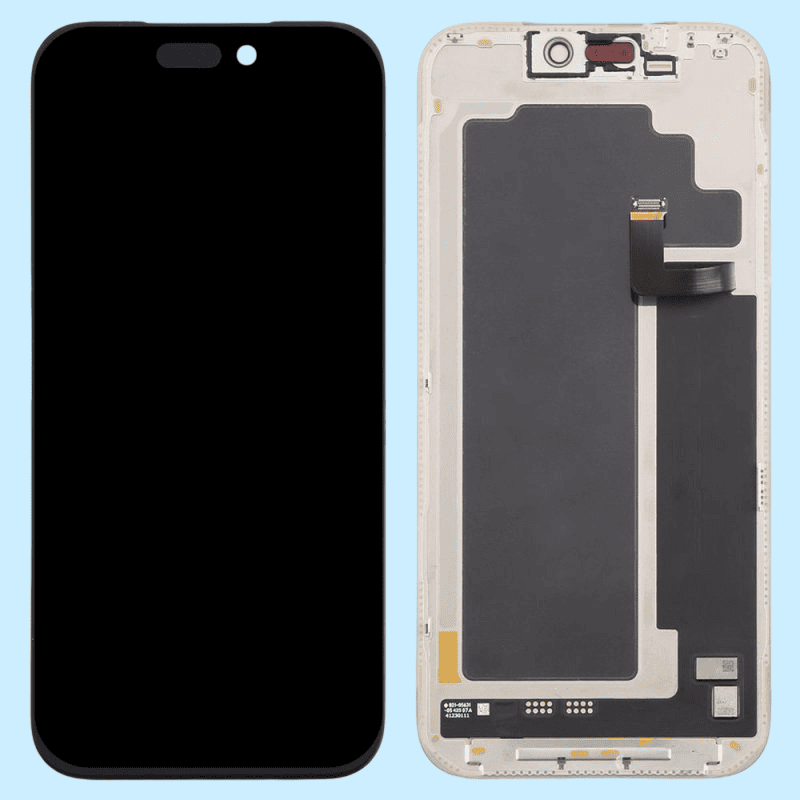
Step 6: Check LCD Connectors and Flex Cables
Many display problems are caused by poor connections.
Inspect Visually:
- Bent or broken connector pins
- Dust or corrosion on contacts
- Torn flex cables
- Improper seating of connectors
Clean gently if needed and reseat connectors properly before final testing.
Android vs iPhone: Additional LCD Checks
Additional Points for Android Devices
- Use hardware test codes (where available)
- Boot into safe mode to rule out app conflicts
- Check display settings and brightness controls
Additional Points for iPhones
- Ensure all screws are placed correctly
- Check proximity sensor and earpiece alignment
- Confirm display compatibility with the model
Improper fitting can affect display behavior, especially in iPhones.
LCD vs Touch Problem: How to Identify
Understanding the difference saves time.
LCD Issue Signs
- No image
- Lines or discoloration
- Flickering display
- White or black screen
Touch/Digitizer Issue Signs
- Image visible but touch not responding
- Partial touch failure
- Ghost touch
A full display replacement may not always be necessary if only the touch layer is faulty.
Can Software Cause LCD Problems?
Yes, but rarely.
Software-related display issues may include:
- Stuck logo due to firmware corruption
- Display glitches after updates
- Incompatible ROMs
In such cases:
- Software restore or flashing may help
- Hardware replacement should be the last step
Common Technician Mistakes to Avoid
- Replacing LCD without battery testing
- Ignoring connector inspection
- Assuming black screen always means dead LCD
- Using low-quality display panels
- Skipping cross-testing
Testing first saves money, parts, and reputation.
Choosing the Right Replacement LCD Screen
If replacement is confirmed:
- Match exact model and version
- Prefer original or OEM-grade display
- Check brightness and color accuracy
- Test before final assembly
A poor-quality screen leads to callbacks and dissatisfaction.
Real Workshop Insight
In daily repair work, many “LCD problems” are solved by fixing battery issues, reseating connectors, or correcting improper assembly. True LCD failure is common—but not as common as assumed.
“Diagnosis is the skill that separates a repairer from a parts changer.”
Summary: How to Test a Smartphone LCD Screen Before Replacement
To test a smartphone LCD properly:
- Check battery voltage and condition
- Confirm the phone powers ON
- Inspect visually
- Use torch light test
- Cross-test with known good LCD
- Inspect connectors and flex cables
- Consider Android and iPhone-specific checks
This process works for Android phones, iPhones, and most modern smartphones.
Final Thoughts
LCD testing is not about speed. It is about certainty. A technician who follows a structured testing process avoids mistakes, saves money, and delivers professional-level repairs.
Master this skill, and LCD replacement will never be a guess again.